---
title: Tips For Using AI-Generated Images In Your Slides
teaser: I used AI to generate images for my slides, but it required some work to get
them to look how I wanted. Here's what I learned along the way.
tags: artificial intelligence,images,slide deck
author: Matheus Richard
published_on: 2024-05-08
---
I gave a talk on [Tropical.rb] and, while writing it, I had a goal of [not using
bullet points] in my slides. That made me create *a lot* more slides, and many
of them contained images. I used AI to generate the illustrations for my
presentation, but it required some work to get them to look how I wanted.
Here's what I learned along the way.
## Getting What You Want
The first step when generating images is figuring out what you *actually* want.
We might get stuck on analysis paralysis, so try to get something on the screen
as soon as possible.
### Iterate Over Ideas
I think that was one of the best parts of using AI. Sometimes, I had to
illustrate some abstract concepts like "HTTP requests", so I didn't know what
image I wanted in the first place. With AI, I could just give it a basic prompt
like A drawing representing an HTTP request, and it would at least get
something on the screen. Once I see it, I can get inspired and iterate on that
idea.
Play around with prompts a bit and iterate over the results. You *probably*
won't get it right the first time.
Sometimes you evolve your ideas. Sometimes you evolve your prompts.
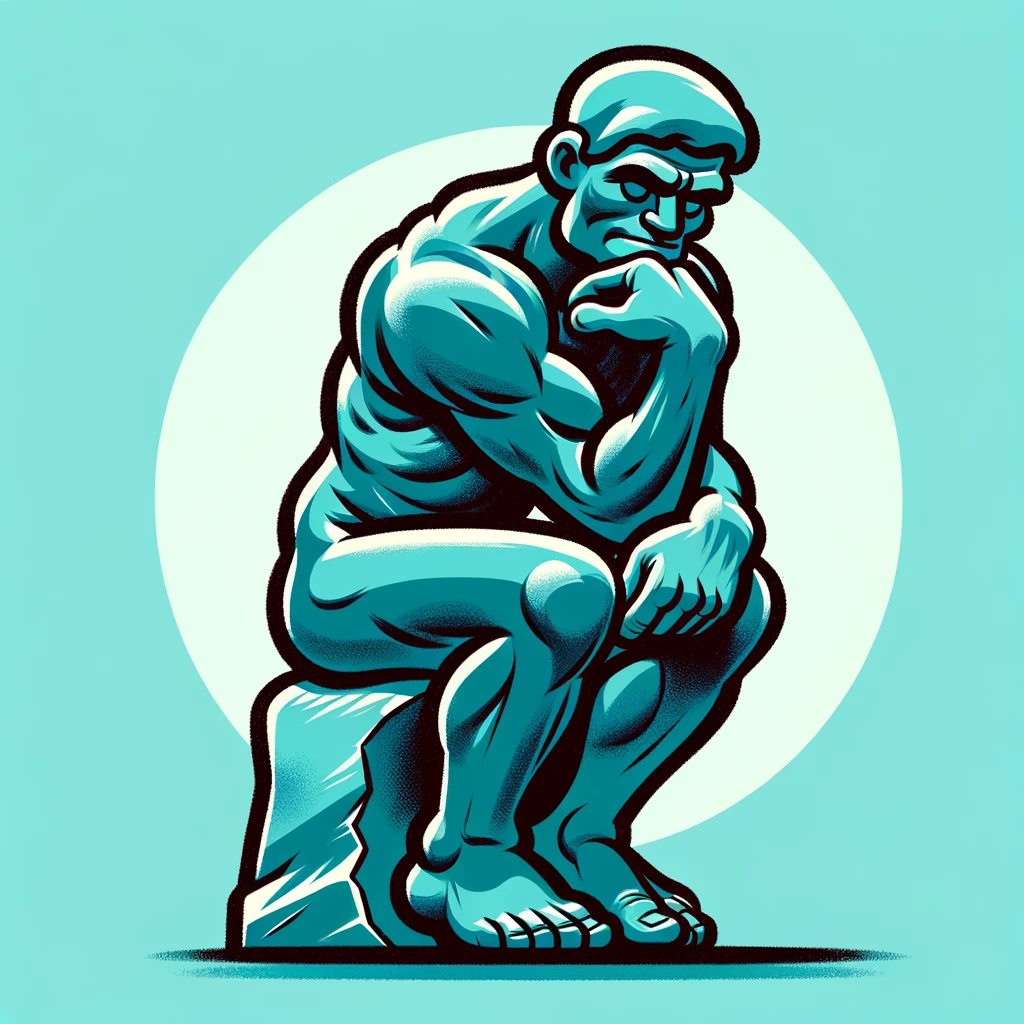
Some things were very easy to generate, while others were impossible. For
example, I wanted a cartoon version of ["The Thinker" statue], so I just
prompted The Thinker statue, cartoon style and got exactly what I wanted
on the first try.
Prompt: "The Thinker statue, cartoon style"
On the other hand, I wanted to generate a version of [the "Drake meme"], but
because it references a real person, the AIs wouldn't generate it. It was so
frustrating because I didn't even want Drake himself in the image, just the meme
format. I ended up giving up on this one.
### Be specific
The more specific you can get, the easier will be to get what you want. I'm not
an artist, so sometimes was hard to convey what I wanted because I didn't know
words for it ([LLMs][] like ChatGPT to help you figure that out).
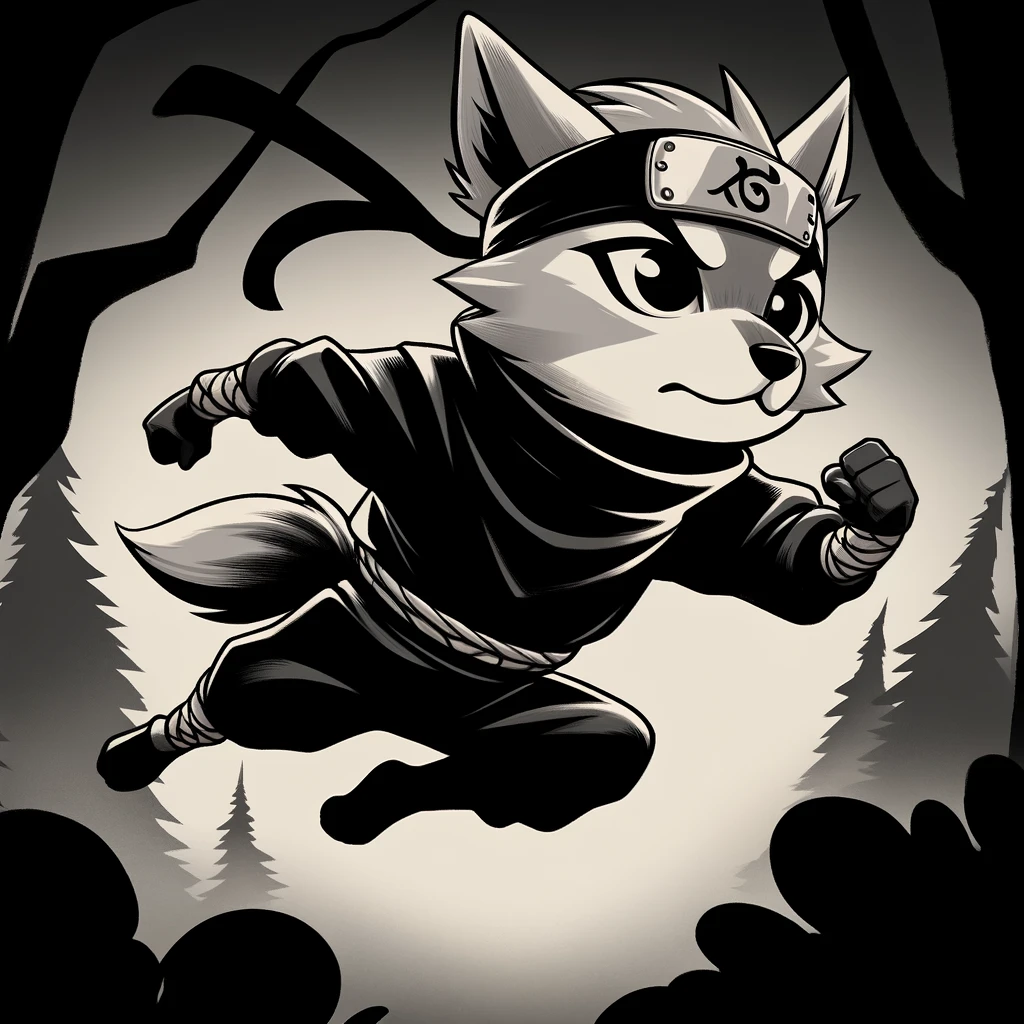
Try using references like "anime style", "Van Gogh", "synth-wave", "cyberpunk",
etc. You can be even more specific specifying a particular piece of art or
sub-genre (e.g., chibi manga). Using a particular artist's name can also help,
but the AI might refuse to generate it for copyright reasons.
Prompt: "A ninja dog, Masashi Kishimoto style, low detail"
Negative prompts are very helpful too. If the AI is doing something you don't want,
tell it to stop. For example, append no text, no background, or
don't draw faces to your prompts.
### Dealing With Text
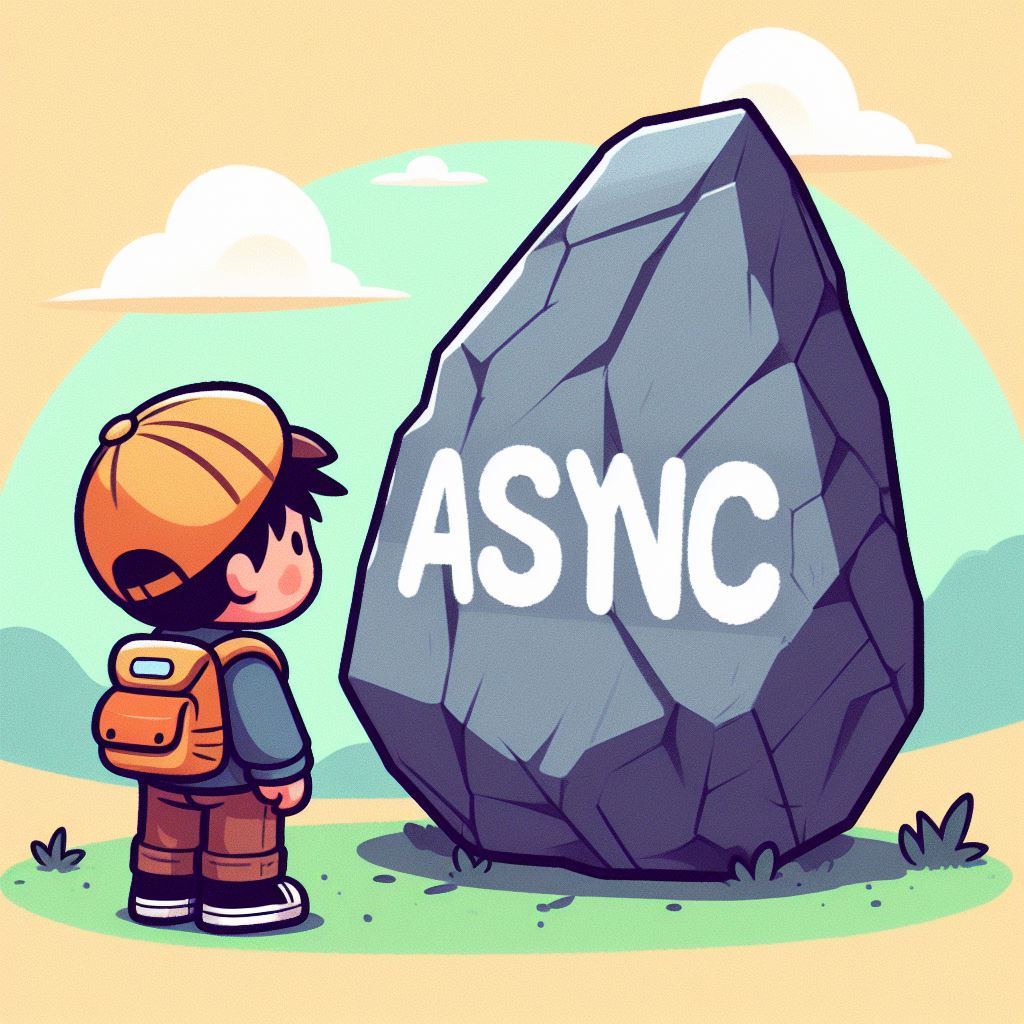
While it's much better than it once was, AI still often struggles with text. For
instance, it wouldn't generate an image with the word "async" correctly spelled.
It would either skip the N or merge the Y and N in a weird way that looked like a new letter.
I tried prompting "ASYNC" in uppercase, but it **did not** help at all.
Prompt: "A small kid looking at a big rock with the word ASYNC written, no background, cartoon style, simple"
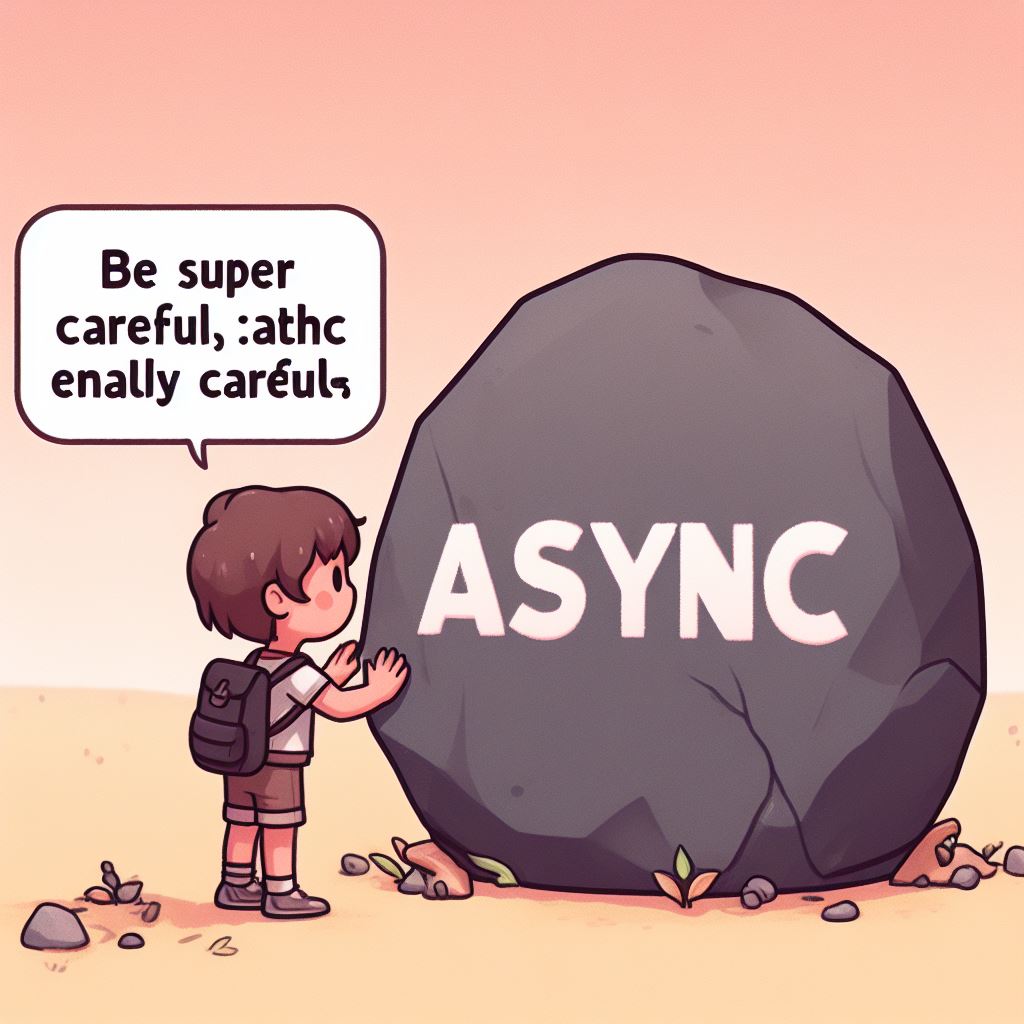
I told it to be super careful with the letters, and that improved the
results a bit, but it made the AI add that phrase to the image.
Prompt: "A small kid looking at a big rock with the word ASYNC written, be super careful with the letters, no background, cartoon style, simple"
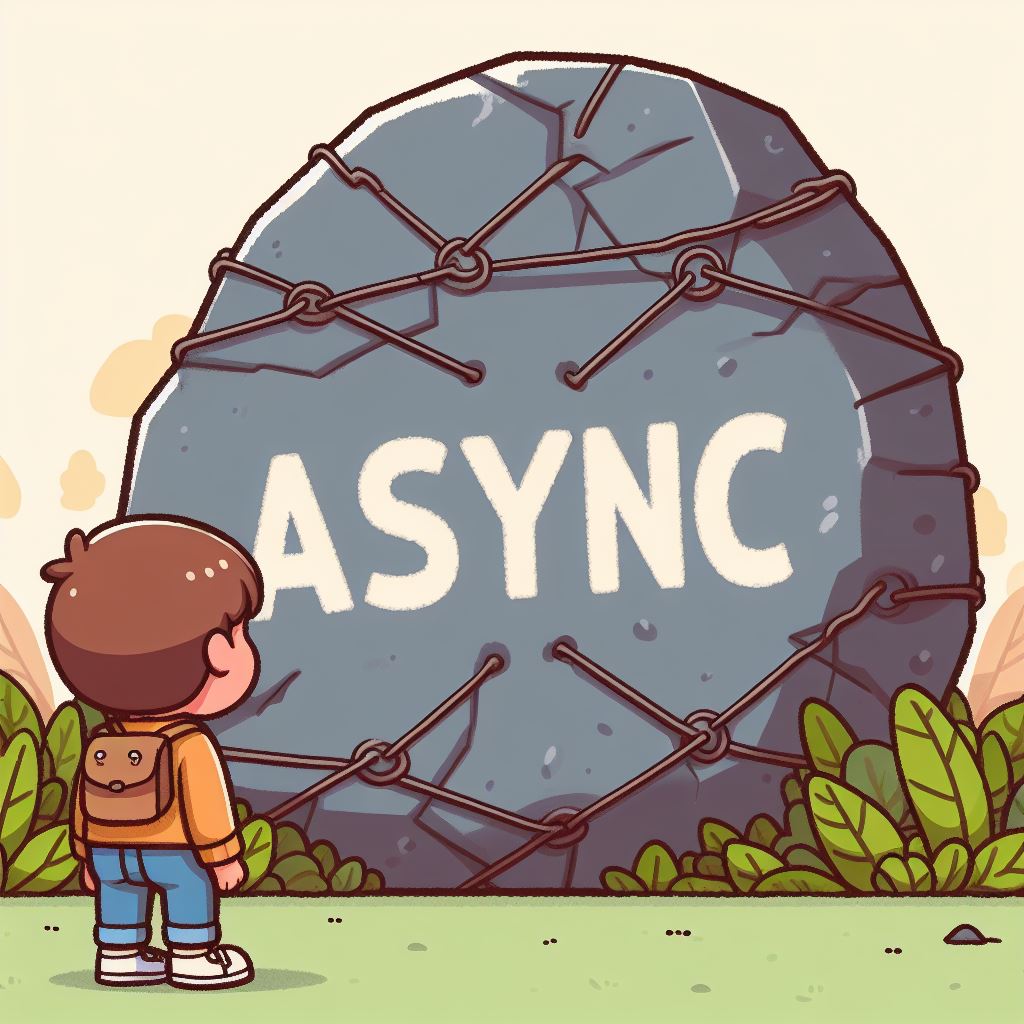
The solution for me was to prompt do not misspell.
Prompt: "A small kid looking at a big rock with the word ASYNC written, do not misspell, no background, cartoon style, simple"
## Dealing With Small Images
I wanted images to use in my slides, so they either had to be big and in a 16:9
aspect ratio, or have no background so I could use them with a flat color
background.
Most of the AIs available, in particular the free ones, only generate small
images, or they only generate square images. If that doesn't work for you, here
are some ways to work around that. If you know how to use image editors, that
will be useful, but you don't need to be an expert to do many of these things.
### Cropping
It might be possible to just display a part of the image, or the image in a
smaller size. If that's the case, you can just crop it. In my case, I want big
images in my slides, as they are projected on a big screen and there was nothing
else in the slides. I wanted the images to blend with the background, so I
didn't want a hard cut on the edges.
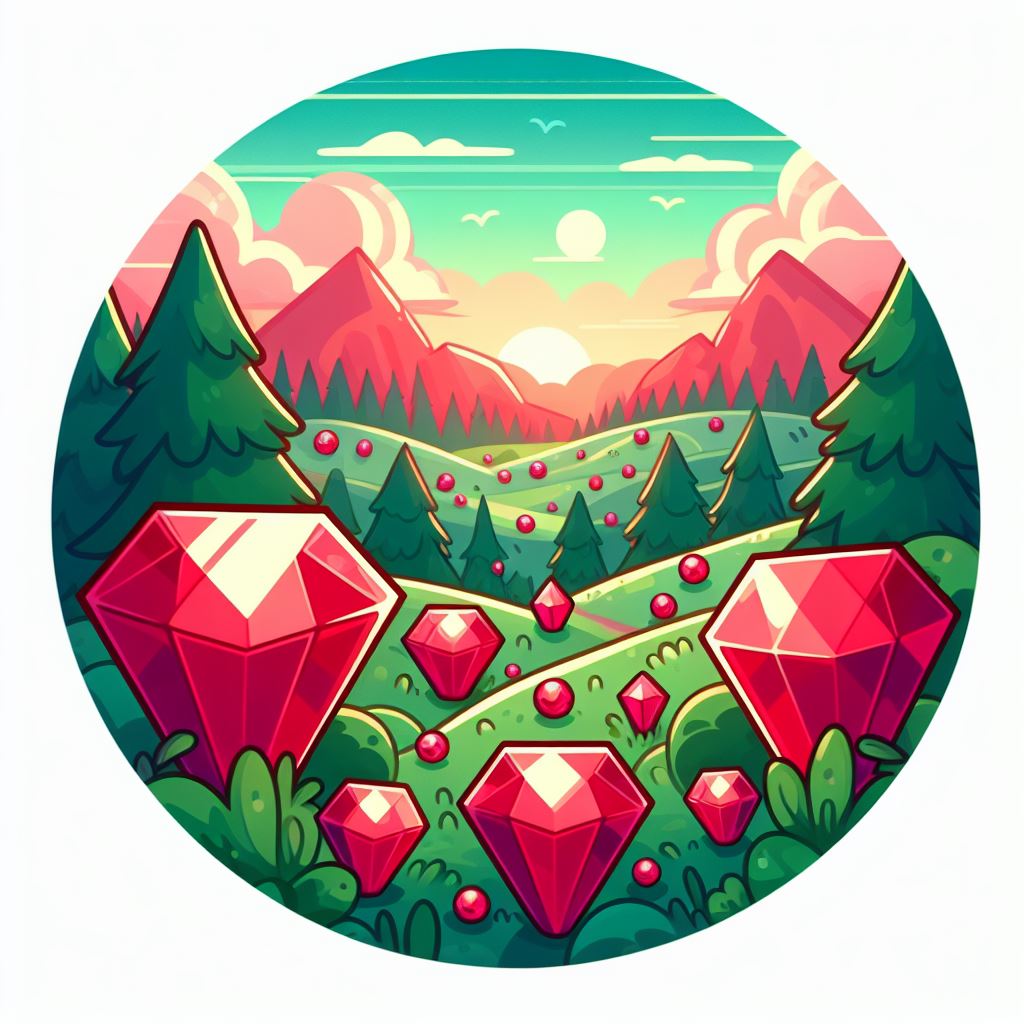
One of the simplest tricks you can use is to crop the image in a circle or
rounded rectangle. Something about cropping images in circles makes the cut look
intentional. Check this slide example:
Prompt: "a landscape with ruby gems, cartoon style, no background, simple"
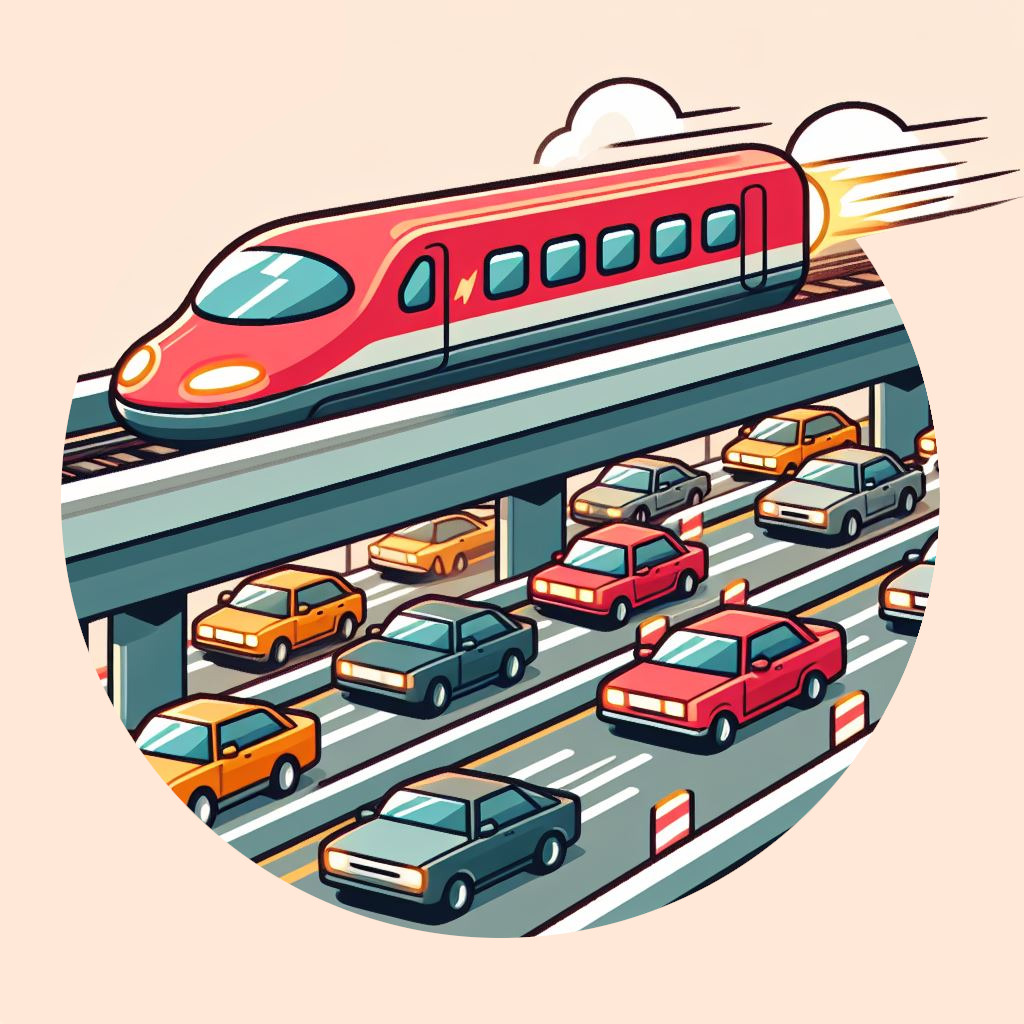
If you have some skills with image editors, you can also make some parts of the
image go outside the circle, which has a nice effect.
Prompt: "a car track with high traffic, but a red bullet train runs freely on the top, no background, cartoon style, simple, flat colors"
### Removing Background
Images with transparent backgrounds are really useful on slides because you can
use them on top of a flat color and they will blend nicely. Unfortunately, all
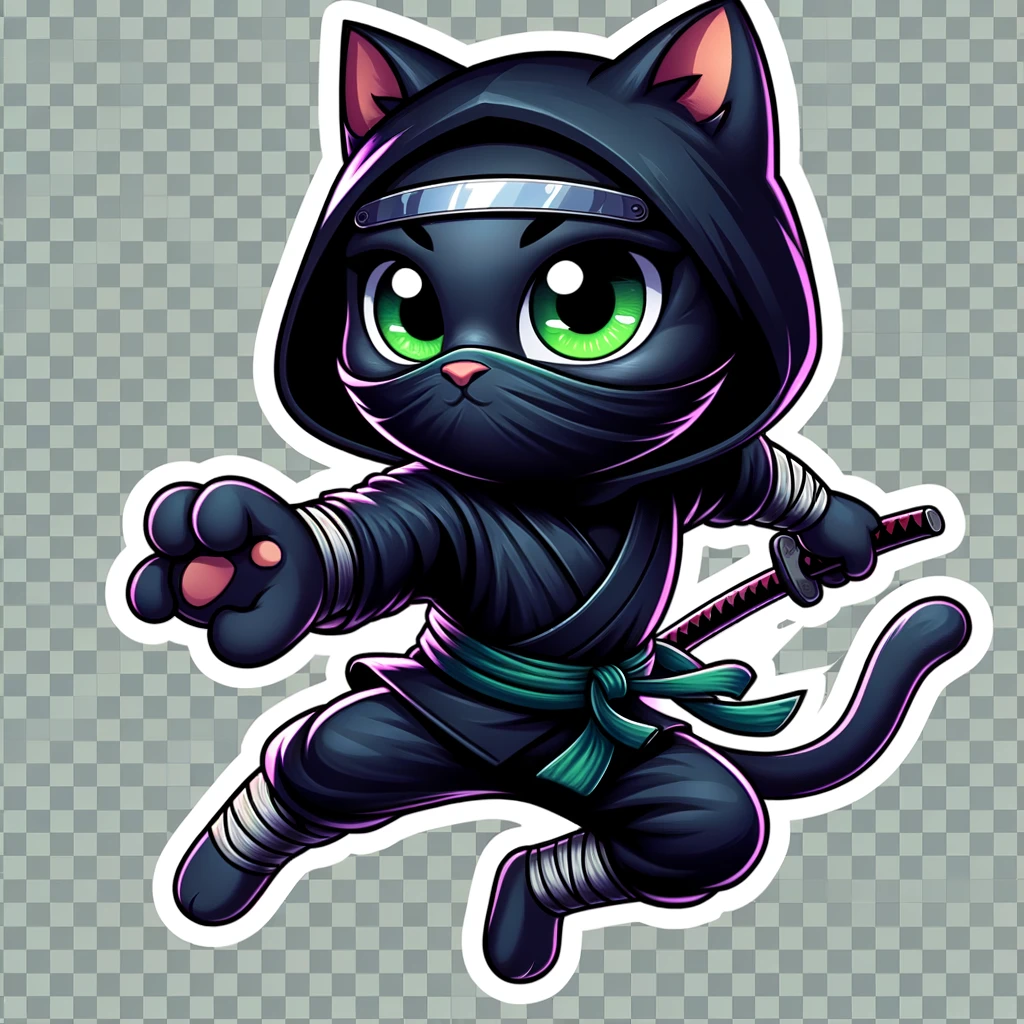
the AIs I tried cannot generate images with transparent backgrounds. If you ask
for that you might get a "fake PNG" (you know, those with a checkerboard
background, not actual transparency).
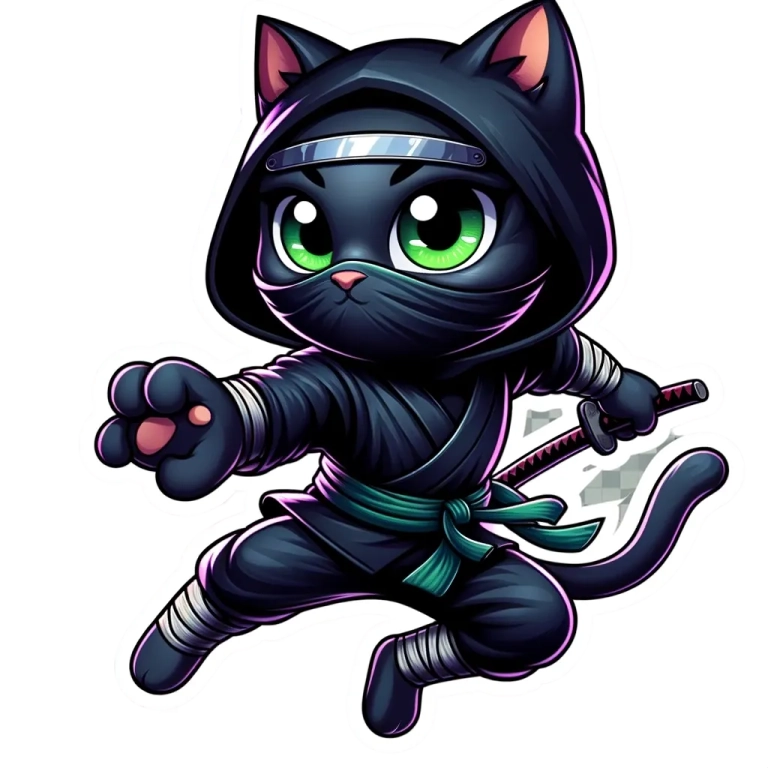
Prompt: "A ninja cat, cartoon style, transparent background"
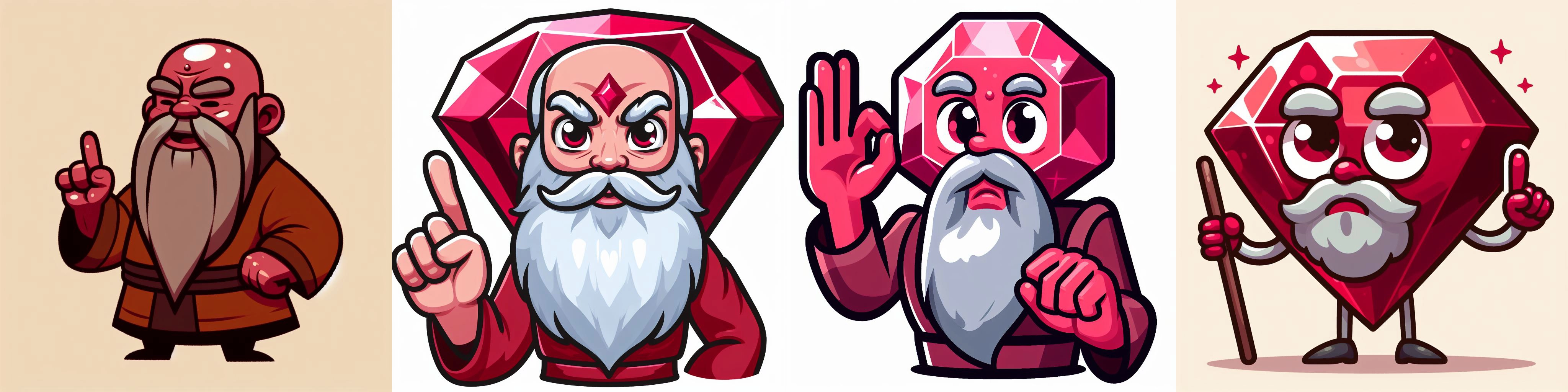
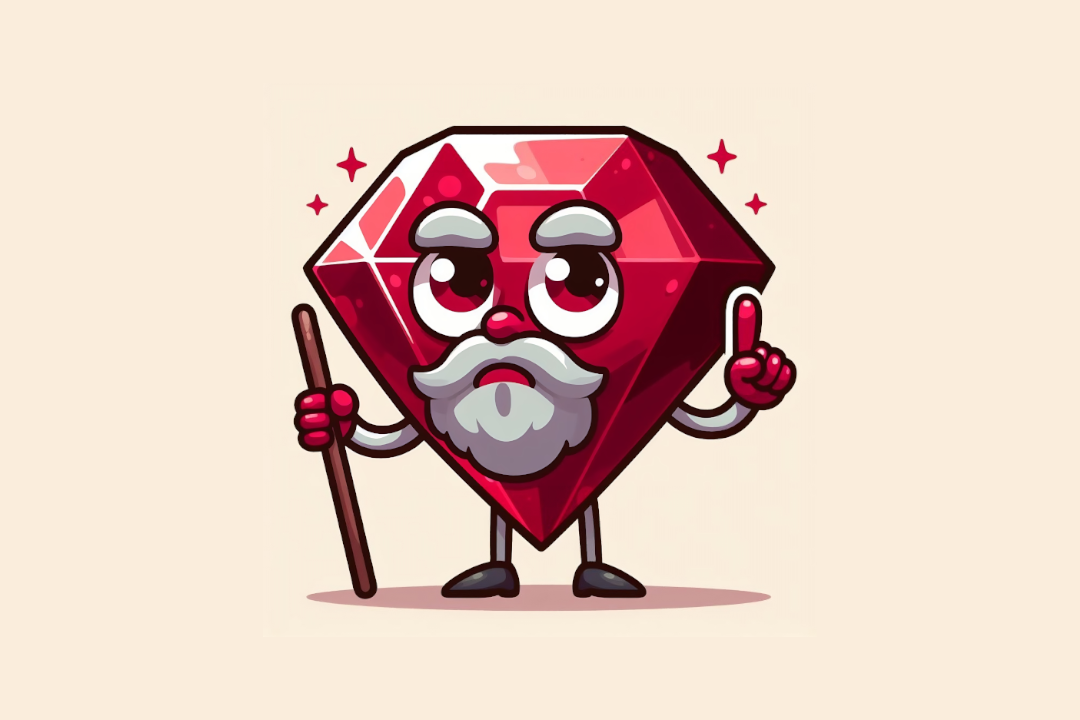
I have a few options to deal with that. The first one is to ask for images with
flat color backgrounds. Then, all you need to do is to put that image on top of
something that has the same color as the background. _Voilà_! You can know have
this image in any aspect ratio you want.
Prompt: "An old ruby gem with arms and legs, who is a monk and has a beard with a finger raised giving advice, cartoon style, no background, simple"
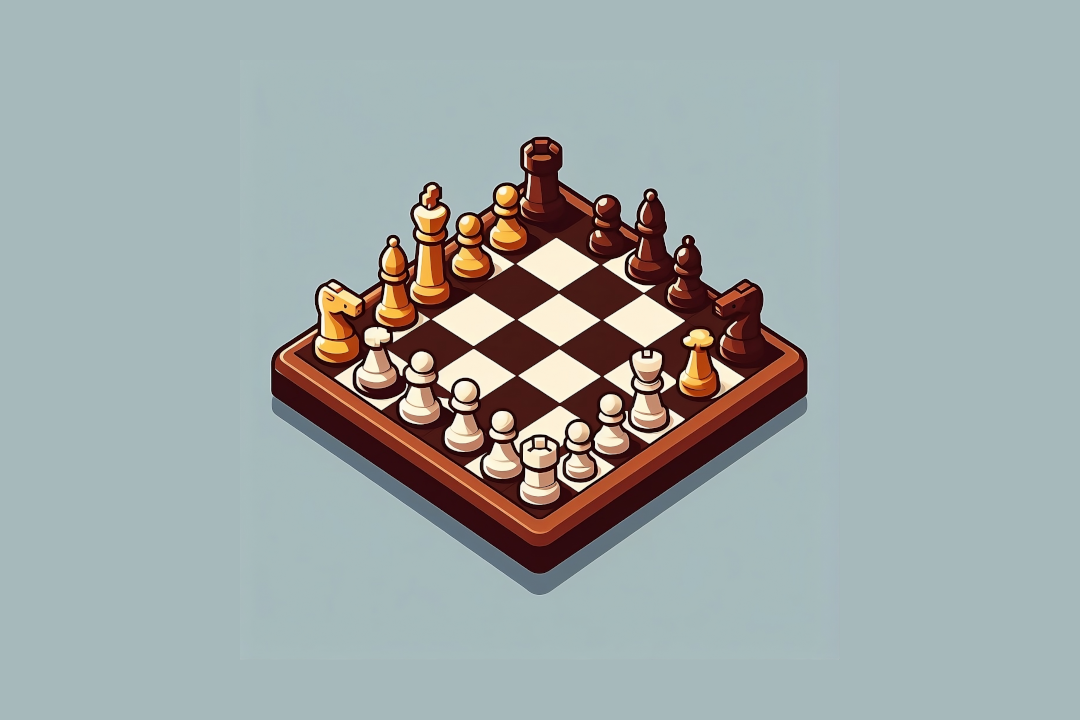
It's possible that the "flat" background in your AI-generated image will not be
super consistent: instead of a single color, you might get a gradient or many
shades of the same color. If you put that on top of a flat background, you might
see the edges of the image. In this example, parts of image blend with the
background better than the others. The lower left corner is visibly using a
different shade than the background.
Prompt: "a chess board from the top, no background, cartoon style, simple"
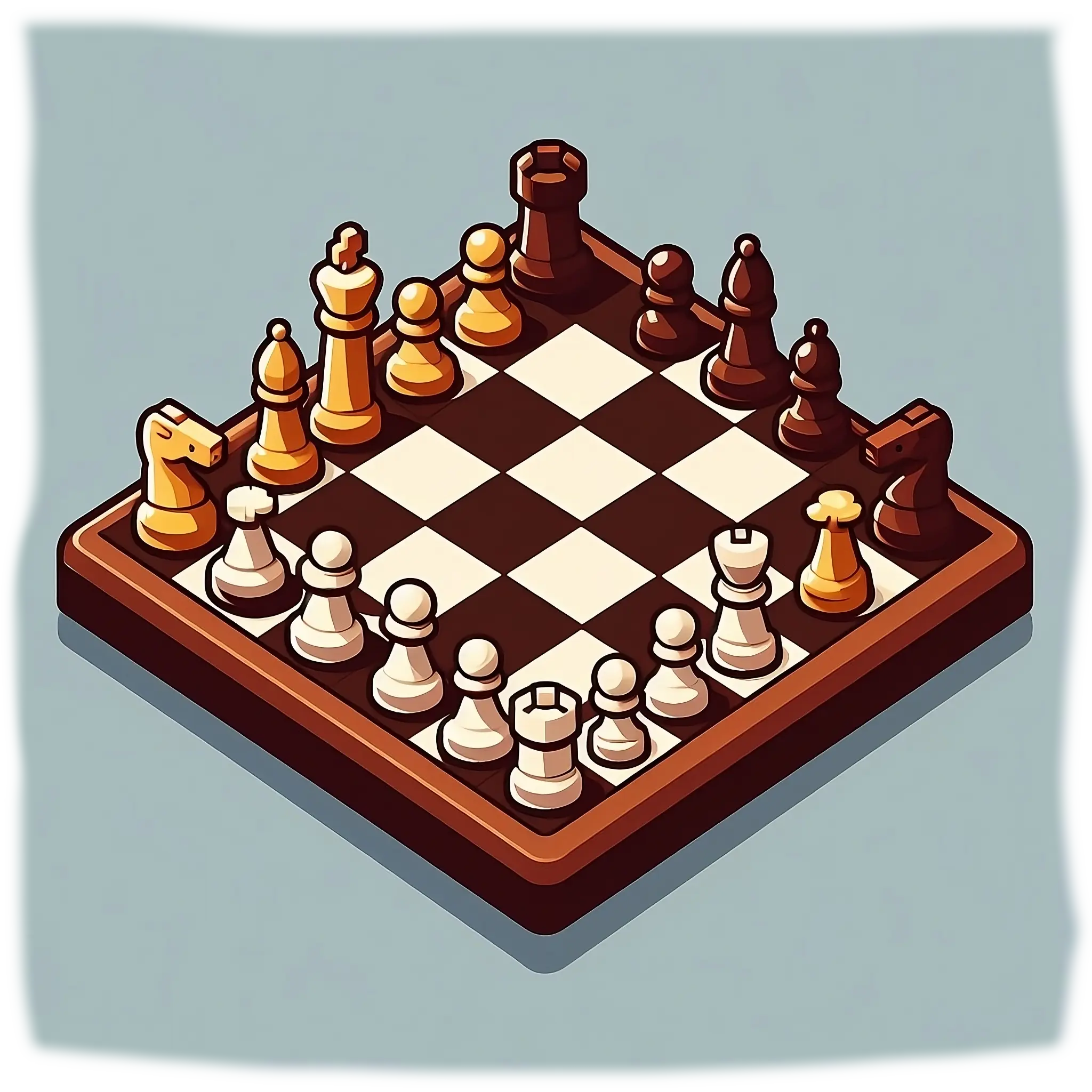
To fix that, you can blur the edges of the image a bit. I used an eraser tool
with a gradient or some opacity, so the edges would blend better with flat color
in the background.
It didn't need a lot of blur to make the image blend with the background
Alternatively, you can take an image that does have a background (flat or not),
and use *another AI* to remove it. I used and it worked well.
Note that there's still a small part of the background left there, but that's easy to fix manually. More on that later.
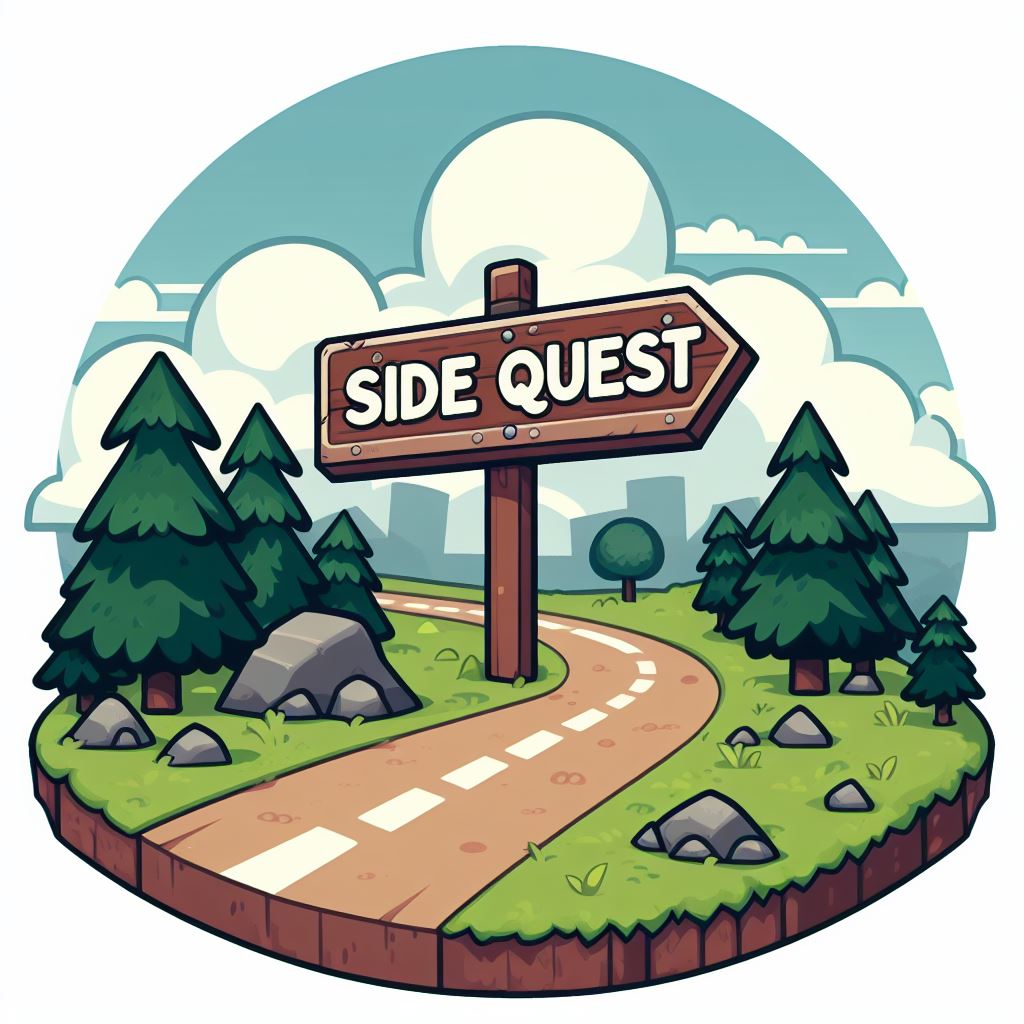
Another tip is to ask AI to generate images that don't touch the edges of the
canvas. That allows you to easily crop or extend them, if needed. You can prompt
in a vignette* to get images that live inside a "little island".
Prompt: "a road with a sign that reads 'side quest', do not misspell it, cartoon style, no background, simple, in a vignette"
### Upscaling
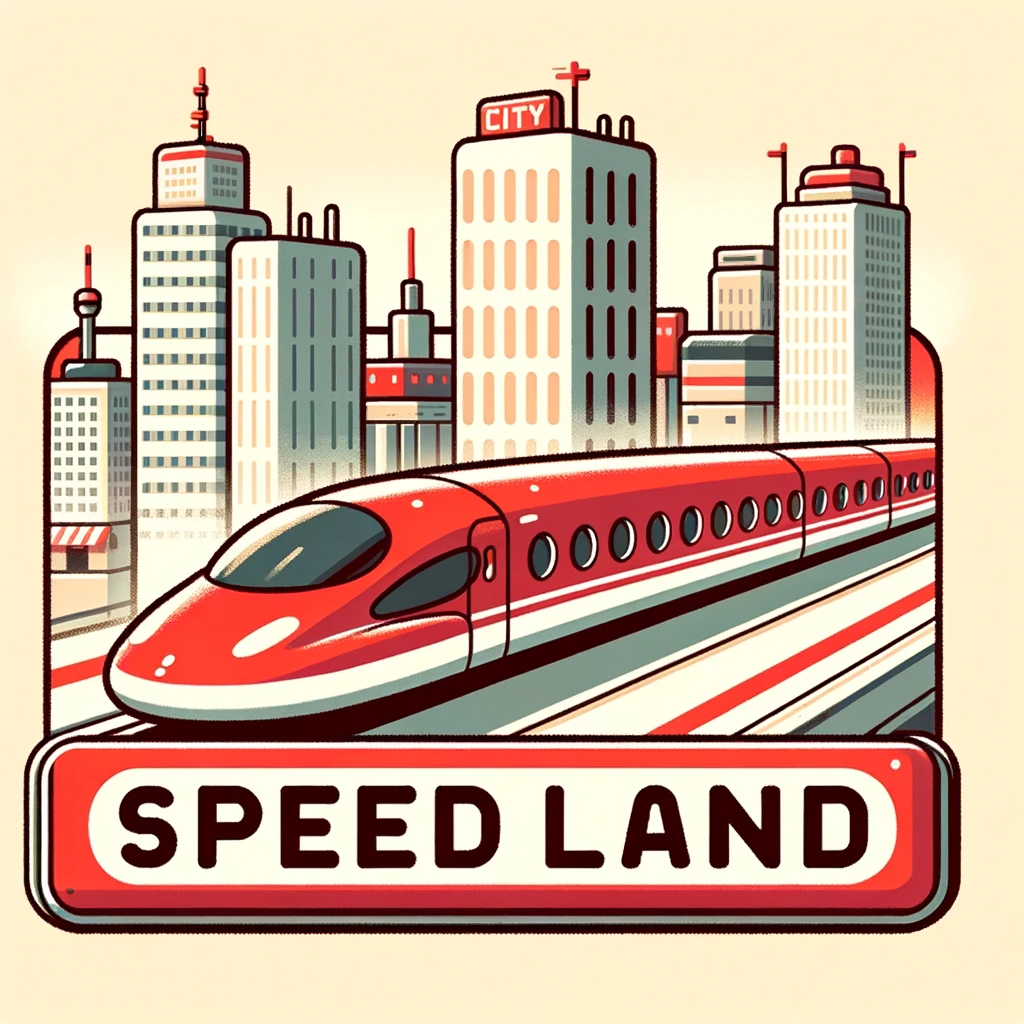
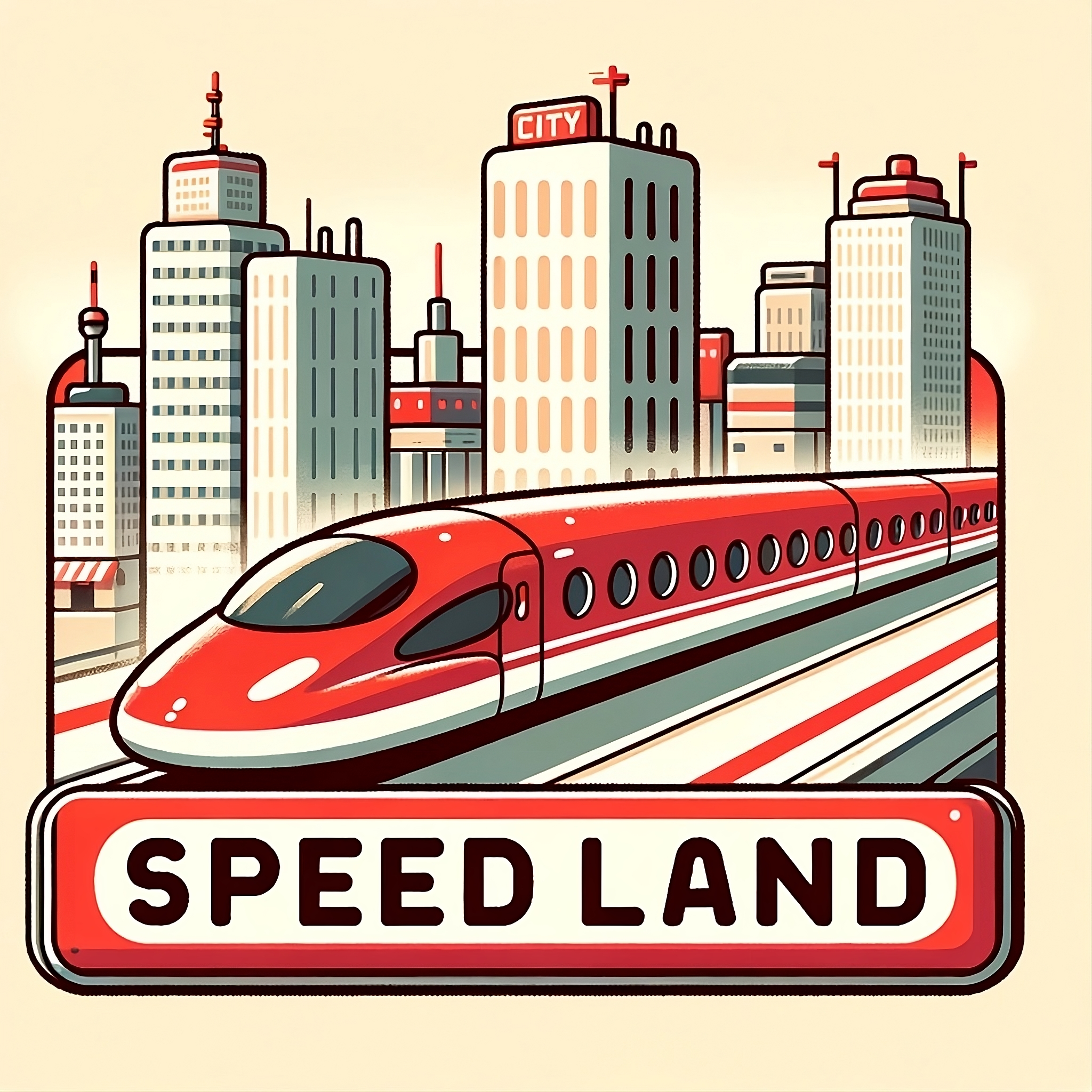
If you need higher-quality images, upscaling the image might be just enough.
There are plenty of AIs available to upscale images. I like using
because it can upscale up to 4 times and it has an
"AI-enhance" feature that makes the final result smoother and better looking
than just upscaling it.
Prompt: "the statue of liberty, no background, just a blue sky, cartoon style, simple"
Check the upscaled version:
This might be hard to see in a small device, but the details are much sharper in the upscaled version. When projecting your slides on a big screen, this will make a difference.
Feel free to use any other upscaling service you like. They're not sponsoring me
in any way (I wish they were), I just like their service.
### Extending
If you need images in a different aspect ratio (like 16:9), extending the image
might be the solution. There are some AIs that can extend images, but in my
experience, none of them were very good. The results were inconsistent, or
just plain bad. You could easily spot the generated parts because they looked
different and out of place.
See this example of an extended image. Both the left and right sides were
extended and contain inconsistent art and overall weirdness (especially
the upper-right corner).
Prompt: "a tokyo subway station with a big digital display, no text written, no background, cartoon style, simple, flat colors"
If you can, try extending as few parts of the image as possible. I couldn't
get this to look very good, so I worked around it by blurring the generated
parts. The center of the image was the focus, so I blurred the edges. You can
use any kind of blur you want (gaussian, focus, motion, etc), but in this case,
I used GIMP's Mean Curvature Blur. It helped smooth out some of the rough parts,
and it worked with the cartoon-styled art.
If you pay attention, the weirdness is still there, but I did some dry runs of
my talk and no one noticed it. Unless someone looks very closely, they won't
notice that, so don't overthink it.
It's also possible to extend an image by copying its sides. This is particularly
effective on symmetric images. Adding some blurring to the copied parts can help
smooth out the transitions. Here, I just cloned the sides of the image
until it reached the aspect ratio I wanted.
### Cleaning Up
As you saw in the previous examples, AI-generated images are not perfect. Having
some skills with image editors will help you a lot. For example, I liked one of
the images generated but wanted to use a different text. I used GIMP's clone
tool to erase the text, so I could add my own on top of it.
Prompt: "a subway digital display of the next station, do NOT add the station name, no background, cartoon style, simple, flat colors"
Another use case I had was fixing some weird stuff that the AI created. I didn't
like the face in the Statue of Liberty picture in this example, so I erased some
bits again using the clone tool.
The before and after of fixing the face of the Statue of Liberty
As I mentioned before, images with AI-removed backgrounds may still contain
some background bits. This is a good chance to fix that manually with usual
image editing tools.
All that said, keep in mind that, as with many things, getting it right from the
source is the best way to achieve good results.
## Thoughts
It's funny how AI sometimes fails to do what computers do best: being
consistent. You ask for a flat color bg, and it gives you one that *looks* like
one color, but it's tens of slightly different shades of that color (if you
color pick, you'll get different values). Or you might ask for something very
specific like Don't add text or Don't draw faces and that's exactly
what it does 🤦🏽♂️.
While it wasn't effortless to get the images I wanted, the final result was
worth it. It required a lot of prompting, and some manual work to get things
right but I'm happy with [the final result].
It was interesting to experience that, like [LLMs] for code, generating images
also required iteration and manual work. They helped me *augment* my abilities,
but they didn't replace them.
[Tropical.rb]: https://www.tropicalonrails.com/archive-2024
[not using bullet points]: https://bowperson.com/2018/02/reposting-6-ways-to-quit-bullet-points-with-style-by-podium-wisdom/
["The Thinker" statue]: https://en.wikipedia.org/wiki/The_Thinker
[the "Drake meme"]: https://knowyourmeme.com/memes/drakeposting
[the final result]: https://docs.google.com/presentation/d/1zwy3RZhH4TOKBTEYPqtaK2Bl_d8bcIc9VhKr9t9lasw/edit?usp=sharing
[LLMs]: https://thoughtbot.com/blog/tags/large-language-models