---
title: Replacing NERDTree with Ctrl-P
teaser: |
Using a fuzzy finder like Ctrl-P has improved my speed to find files
over my previous method of a file drawer in Vim like NERDTree.
tags: vim
author: Lisa Sy
published_on: 2014-01-29
---
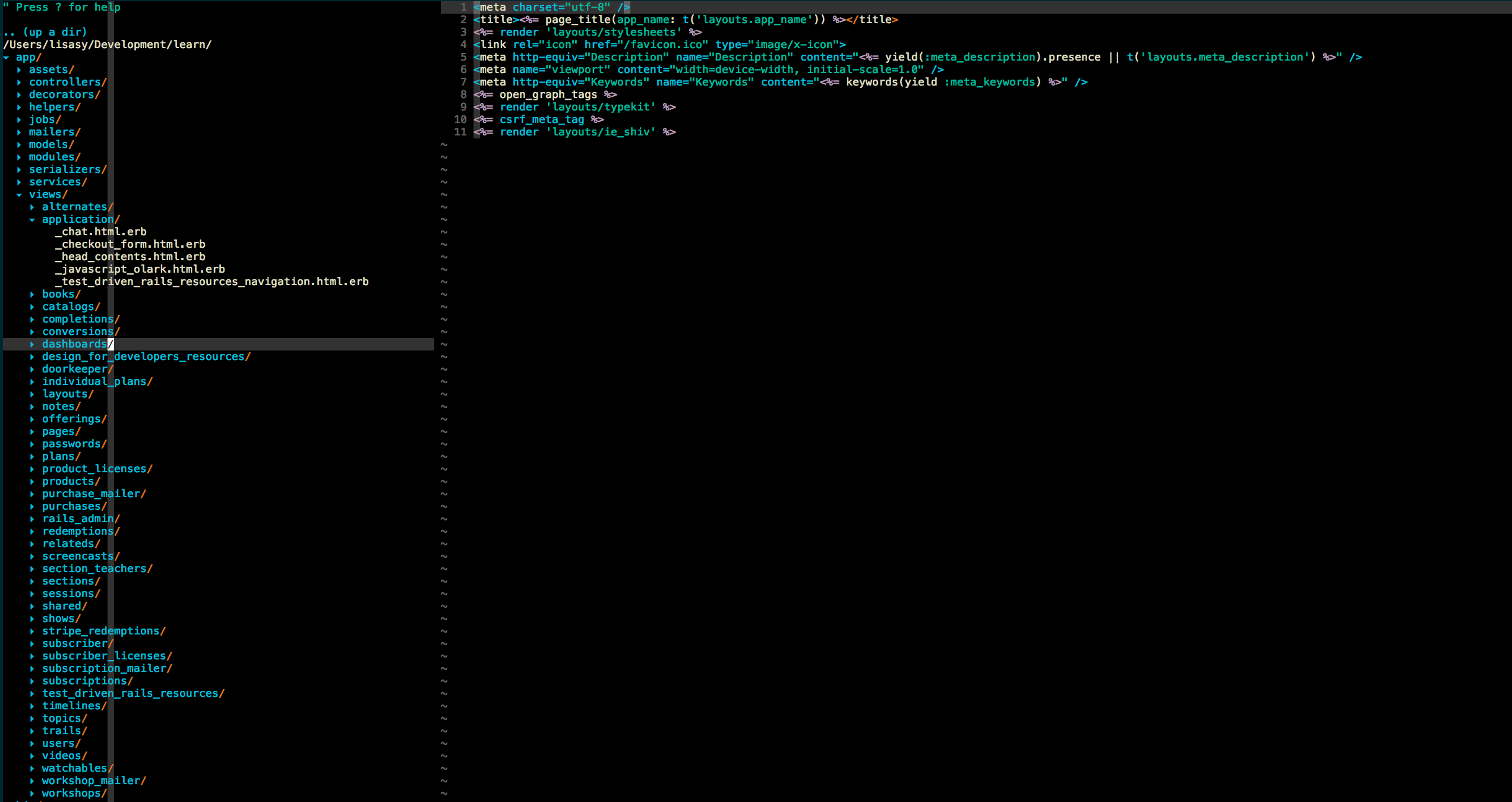
For many months, I used [NERDTree][1] to view my project directory within Vim.
During my introduction to Rails application development, it was valuable to see
the Rails tree structure in my left sidebar. Two weeks ago, I un-installed
NERDTree from my `.vimrc` because I realized that I could improve my workflow
without it.
I used to depend so much on NERDTree.
With NERDTree, the visual tree structure fixed to your left sidebar is valuable
because it tells you how your project is organized. However, I realized that I
was using NERDTree as a crutch to lean on whenever I needed to locate and open
an existing file. By depending so much on this tool, I never questioned how I
could optimize my Vim workflow in other ways.
### Replacing NERDTree with Ctrl-P
I discovered that I could develop a more efficient workflow by eliminating
NERDTree completely and using [Ctrl-P][2] to navigate through my project files.
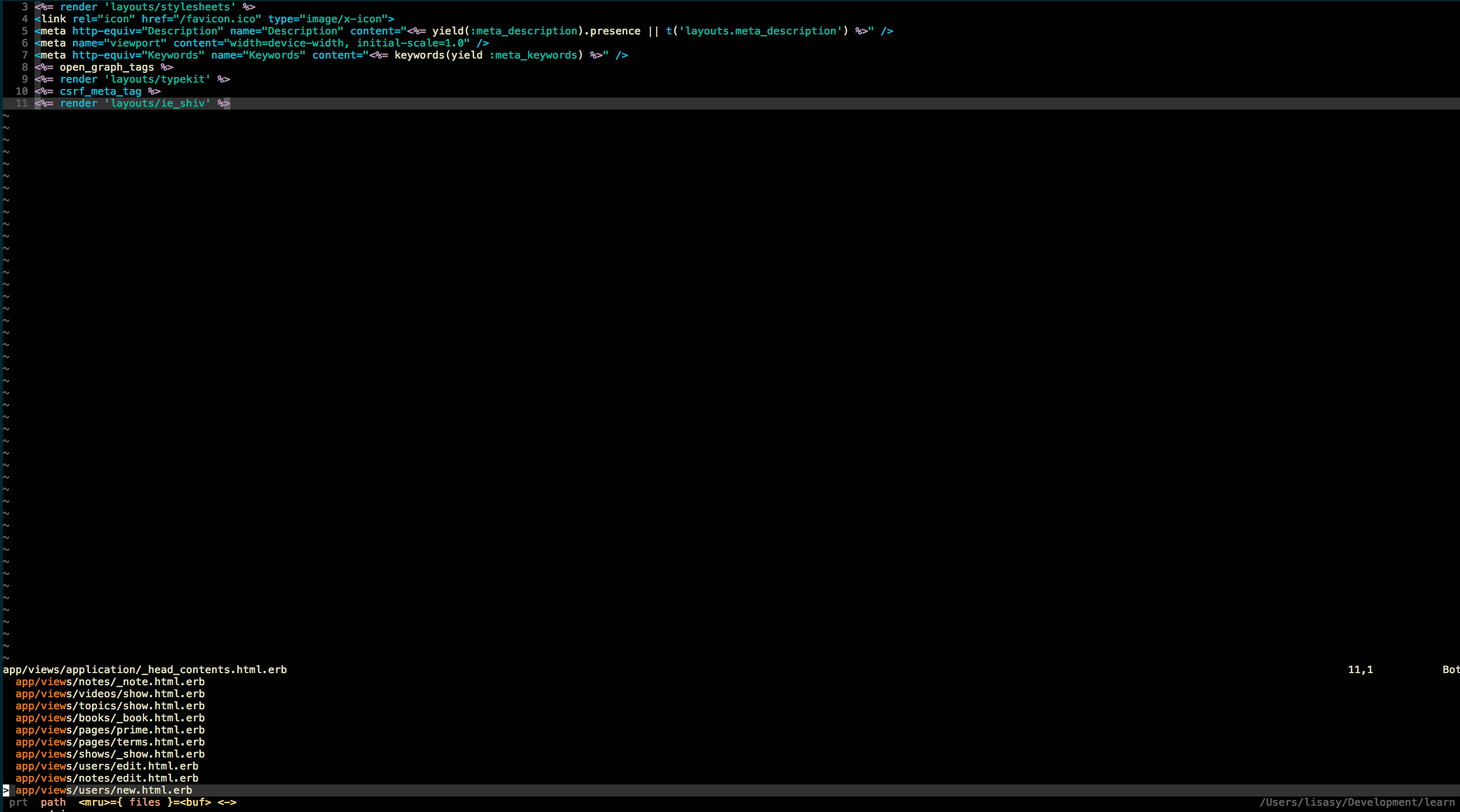
With `Ctrl-P`, you search using a "fuzzy" file finder. Therefore, `Ctrl-P`
forces you to be familiar with your project structure. Additionally, the search
finder shows you only information relevant to your search keyword, so you save
screen space by not seeing all of your files at once.
Now that I don’t use NERDTree, I have greater incentives to enforce strict
naming conventions throughout my applications. If I don’t use best practices to
name and organize my files, I will have trouble locating them using `Ctrl-P` and
be less efficient. Because my files are more properly organized, other team
members will also locate them more efficiently.
Now, I use Ctrl-P exclusively to locate files and
navigate through my project.
## What's next
If you have our [dotfiles][3] installed on your machine, you should already have
`Ctrl-P`. If you are not already using `Ctrl-P`, install the [Vim plugin](https://github.com/kien/ctrlp.vim)
to enhance your workflow. Review our [style guides](https://github.com/thoughtbot/guides/tree/master/style)
to see how we organize our projects.
[1]: https://github.com/scrooloose/nerdtree "NERDTree on GitHub"
[2]: https://github.com/kien/ctrlp.vim "Ctrl-P on GitHub"
[3]: https://github.com/thoughtbot/dotfiles "thoughtbot dotfiles"