---
title: Positioning elements on the web with CSS
teaser: A guide on how to position an element in CSS is sometimes really a choice
about what side effects are most acceptable.
tags: design,css
author:
- Joshua Ogle
- Eric Bailey
- Elaina Natario
published_on: 2017-04-04
---
Choosing how to position an element in CSS is sometimes really a choice about
what side effects are most acceptable.
Positioning layouts in CSS was once a very daunting task, and hacks like using
tables for the entire layout were quite common. Over the years, the demand for
better layout tools has led to steadily better support and techniques.
Today we have options, and learning to manage each of these techniques is the
key to creating complex layouts that remain easy to change and flexible enough
to handle multiple screen sizes.
## Table of contents
1. [Grid](#grid)
2. [Flexbox](#flexbox)
3. [Position](#position)
4. [Floats](#floats)
## Grid
Grid is the newest way to create layouts on the web. It is a powerful set of rules
that allow you to position elements on a vertical and horizontal plane.
Unlike [flexbox](#flexbox), grid should be used for larger page layout. Flexbox can,
and should, be placed inside of a grid layout to help position the components a grid
layout contains. Browser [support for grid is great](https://caniuse.com/css-grid) as well!
There are a lot of properties and functions to learn in order to implement grid, but
once put in place it does wonders for keeping your layouts flexible and maintainable.
Here’s how to start with a grid layout on your page:
```html
```
```css
body {
display: grid;
}
```
That’s it! You won’t see any visual changes just yet with this setup because, unlike
flexbox, the default layout direction is by row (meaning items are stacked
vertically on top of each other). But you’ve made an important step in setting up
your new grid layout — all the first-level child elements of `body` are now grid
items! You can now control their position, alignment, and widths with a few more
declarations.
### Set your grid tracks with column and row templates
`grid-template-rows` and `grid-template-columns` are properties that _explicitly_
define the track sizing of grid items horizontally (column) or vertically (row).
You can define just one direction or both! You can define the size of each grid item
with a variety of measurement units. The order of values in the grid are applied
respectively to the order of elements in the DOM within the grid container (e.g. in
the example below, if the first element in the body is header, it will get a row
height of 100px)
```css
body {
display: grid;
grid-template-rows: 100px 5rem auto 30%;
}
```

You can create _implicit_ grid columns and rows with `grid-auto-rows` and
`grid-auto-columns` which only require a single measurement value that will apply to
all direct child elements in the grid.
```css
body {
display: grid;
grid-auto-rows: 30px;
}
```

### Specify grid flow with auto flow
`grid-auto-flow` controls how items are automatically placed in the grid. This
property is much like `flex-direction` because it directs the automatic stacking of
items, vertically or horizontally. The default is `row`, but a value of `column` can be used so
items are placed next to each other along the horizontal axis. You can use
`grid-auto-flow` without setting sizes for template rows/columns if you’re simply
looking to change the stacking direction.
```css
body {
display: grid;
grid-auto-flow: column;
}
```

Additionally, you can set a value of `dense` which aims to “fill in the holes” as
soon as possible in the grid. You can also specify the direction of density with
`column dense` or `row dense`. The caveat to using this value is that it may place
an item out of order in your grid in an attempt to take up any unused empty space.
```css
body {
display: grid;
grid-auto-flow: row dense;
}
```
### Use flexible sizing with the fractional unit
Grid also introduces a new unit called a fraction or `fr`. `fr` defines the
proportion an item should take up relative to its container (think cocktail-mixing:
7 parts gin and 1 part dry vermouth to make a martini). In the below example, the
first two grid items will take up equal proportions, while the third item will take
up three times the size as the first two; the last item will be the same size as the
first two items.
```css
body {
display: grid;
grid-template-rows: 1fr 1fr 3fr 1fr;
}
```

### Draw your grid in CSS with template areas
`grid-template-areas` assigns names to grid cells that can be referenced in child
elements to place them on the grid. The cool thing about grid areas is that you’re
sort of drawing your grid with a declaration ([this also makes for amazingly simple
media queries]). Each separate string (within each quote block) represents a
distinct row; each item within that string represents a distinct column. You can
spread an item across multiple columns or rows by repeating the name (the cells must
form into a rectangular shape; you cannot disjoint them). This method of naming grid
areas is handy when dealing with high-level page layout for readability in a
complex quilt of elements.
```css
body {
display: grid;
grid-template-areas:
"head head"
"nav main"
"foot foot";
}
```
The template areas defined above need to correspond with particular elements by
using the `grid-area` property.
```css
header {
grid-area: head;
}
nav {
grid-area: nav;
}
main {
grid-area: main;
}
footer {
grid-area: foot;
}
```

Adding a period within a row string tells the browser to render an empty cell.
```css
body {
display: grid;
grid-template-areas:
"head ."
"nav main"
"nav foot";
}
```

Grid items can be organized in any order. But [be wary of accessibility issues] with
totally reordering DOM elements as it can be a frustrating experience with screen
readers and tabbing.
```css
body {
display: grid;
grid-template-areas:
"foot . ."
"main nav nav"
"head head head";
}
```
### Apply template patterns with the repeat function
If you would like to create a measurement pattern for your grid items (without
writing out the same value over and over again), you can use the repeat function.
This function takes two arguments: number of repetitions and width/height of each
column or row. In the below example each grid row will take up equal height over 3
columns. This will also define the wrapping of elements in your grid.
```css
body {
display: grid;
grid-template-columns: repeat(4, 1fr);
}
```

A repeat pattern can also take multiple measurement values to define a more complex
pattern.
```css
body {
display: grid;
grid-template-columns: repeat(2, 100px 1fr);
}
```

It’s also important to note that grid has also introduced other useful functions
such as [minmax] and [fit-content].
### Create gutters in a grid with the gap property
Perhaps the most exciting property now available to us is `gap` (earlier specified as `grid-gap`),
which sets the gutters or gaps between rows and columns. Before this handy feature existed, setting
gutters was an arduous task requiring negative margins and precise-width
calculations.
`gap` is shorthand for `row-gap` and `column-gap` and takes most any
measurement value. Writing a single value applies the same gap to both rows and
columns; writing 2 separate values next to each other applies each gap to rows and
columns respectively. If you’d only like to specify a gap to either the columns or
the rows, use `row-gap` or `column-gap` with one value.
This property also works with [flexbox](#flexbox) and multi-column layouts.
```css
body {
display: grid;
grid-auto-rows: 30px;
grid-gap: 2rem;
}
```

### Specify element locations with grid column and row
Not all grid positioning has to be done within the parent element; child elements
take a few properties for greater control. `grid-area` is used to [define the
position of an element when using `grid-template-area`](#draw-your-grid-in-css-with-template-areas).
If your grid is drawn with template or auto rows/columns, you can
precisely position items onto specific grid lines. To do this you can use the
`grid-column` and/or `grid-row` properties. These are shorthand for
`grid-[column/row]-start` and `grid-[column/row]-end`, separated by a slash (e.g.
`grid-column: grid-column-start / grid-column-end`).
It's important to note that grid lines start and end on the outer container and
are numbered starting with 1. For example, a grid with 6 columns will have 7 grid
lines.
```css
body {
display: grid;
grid-template-columns: repeat(6, 1fr);
}
header {
grid-column: 2 / 4;
}
```

We can also tell a grid item to spread itself across a certain number of columns or
rows with `span`
```css
.grid {
display: grid;
grid-template-columns: repeat(6, 1fr);
}
header {
grid-column: span 3;
}
```

### Position items along an axis with self-alignment
In the [flexbox](#flexbox) section, we’ll discuss parent alignment with `align-content`,
`justify-content`, `align-items` and `justify-items` (which also apply to grid).
Now, we can apply some similar properties to the child elements themselves with
`align-self` and `justify-self`. Both take string values such as `center` `start`
and `end`. `Align-self` aligns on the [block axis], while `justify-self` aligns on
the inline axis. Alignment takes the amount of space the content inside the grid item
takes up and places it accordingly.
```css
body {
display: grid;
height: 100vh;
}
footer {
align-self: end;
}
```

If you want to simplify even more, you can use the shorthand property
[place-self], which sets `align-self` and `justify-self` respectively. You can use
two values to place an item, or one value that is applied to both properties. This
makes centering a breeze.
```css
body {
display: grid;
height: 100vh;
}
main {
place-self: center;
}
```

### Design complex layouts with subgrid
The newest Grid feature (with [excellent browser support](https://caniuse.com/css-subgrid)) is `subgrid`. `subgrid` is a value you can apply to the _child_ of a grid element that
allows it to inherit the tracks (rows and columns) along with the gaps from its parent. Previously, you would have to redefine the same column and row measurements for any children if you wanted to nest more grids.
It's a [pretty powerful layout tool](https://12daysofweb.dev/2022/css-subgrid) that allows you to consistently align elements without having to overly define its location.
The best part? You can keep nesting your subgrids (as long as each parent is a grid item).
You can also target the grid track names of a parent with subgrid.
```html
```
```css
main {
display: grid;
grid-template-columns: 1fr 3fr 1fr 1fr;
grid-template-rows: repeat(4, 10vh);
}
section {
display: grid;
grid-column: 2 / 4;
grid-row: 1 / 4;
grid-template-columns: subgrid;
grid-template-rows: subgrid;
}
aside {
grid-column: 3 / 4;
grid-row: 1 / 3;
}
```

## Flexbox
A good way to handle elements of variable sizes is to use the new *flexbox*
properties introduced in CSS3.1. This gives us a lot more options to control
layout and has solved some of the long-standing problems in CSS.
Flexbox is such a powerful tool and replaces so many other hacky solutions,
so it is worth taking the time to understand how to use it.
Let's jump in. Here is how to set up an element to use flexbox.
```html
```
```css
.container {
display: flex;
flex-direction: row;
}
```
Setting the container to `display: flex` simply lets the browser know that we
intend the children to use flexbox for their layout. Then we add
`flex-direction: row` to the children to align them horizontally, and by
default they will be the same width unless they have a width set.
### Determine flow with flex-direction
`flex-direction` allows you to specify whether your elements should be arranged
vertically or horizontally. By default, the value will be `row`, which simply
arranges you items horizontally. You can also use `column` to switch to a
vertical orientation.
```css
.container {
display: flex;
flex-direction: row;
}
```

Keep in mind that using `column` may affect how the other flexbox properties
look on your items, and for simplicity we will mostly be talking about
horizontal items because that is by far the most common use-case, but keep in
mind that this other direction option does exist.
### Overflow elements with flex-wrap
`flex-wrap` defines whether elements should be forced to fit in a single line
(`no-wrap`, the default behavior) or allowed to maintain their normal size with
`wrap`. Most of the time you will want the default behavior, but overriding
this property will let you use flexbox's other properties without affecting the
widths.
```css
.container {
display: flex;
flex-wrap: wrap;
}
```

When set to `no-wrap`, elements will still be sized proportional to each other.
For instance, imagine items in a list are set to be `100px` wide, except for
the last one which is `200px`. The items will resize to fit the container, but
the last item will still be twice as wide as the others.
### Space out elements with justify-content
`justify-content` determines how to space your content in your row or column.
The default value is `flex-start`, which will left align your items. Naturally,
we also have `flex-end` to right align the items and `center` to center them.
Things get more interesting with `space-between`, which give equal spacing
between items but not on the ends, while `space-around` gives equal spacing to
the ends as well.
```css
.container {
display: flex;
justify-content: center;
}
```
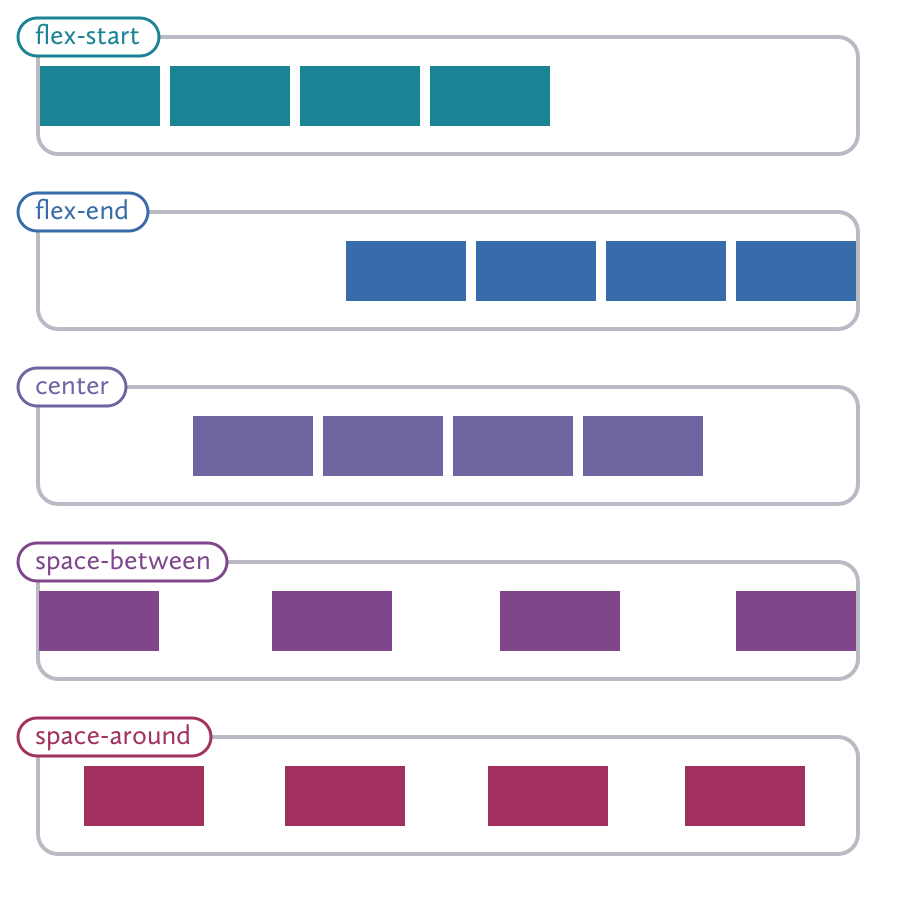
This is best used when the items have set widths (or have reached their maximum
widths).
This can be really helpful when lining up your flexbox items to your grid,
without relying on things like floats.
### Space out elements with align-content
*Align-content* is similar to `justify-content`, but controls where the items
are on the cross axis. I say "other" because when you are using
`flex-direction: row`, then `align-items` is controlling the vertical
alignment, but when you are using `flex-direction: column`, it's the other way
around.
You can align the items to the baseline of the text within each item by using
`baseline`. There is also an option to make each item span from one end of the
axis to the other with `stretch`.
```css
.container {
display: flex;
align-items: center;
}
```
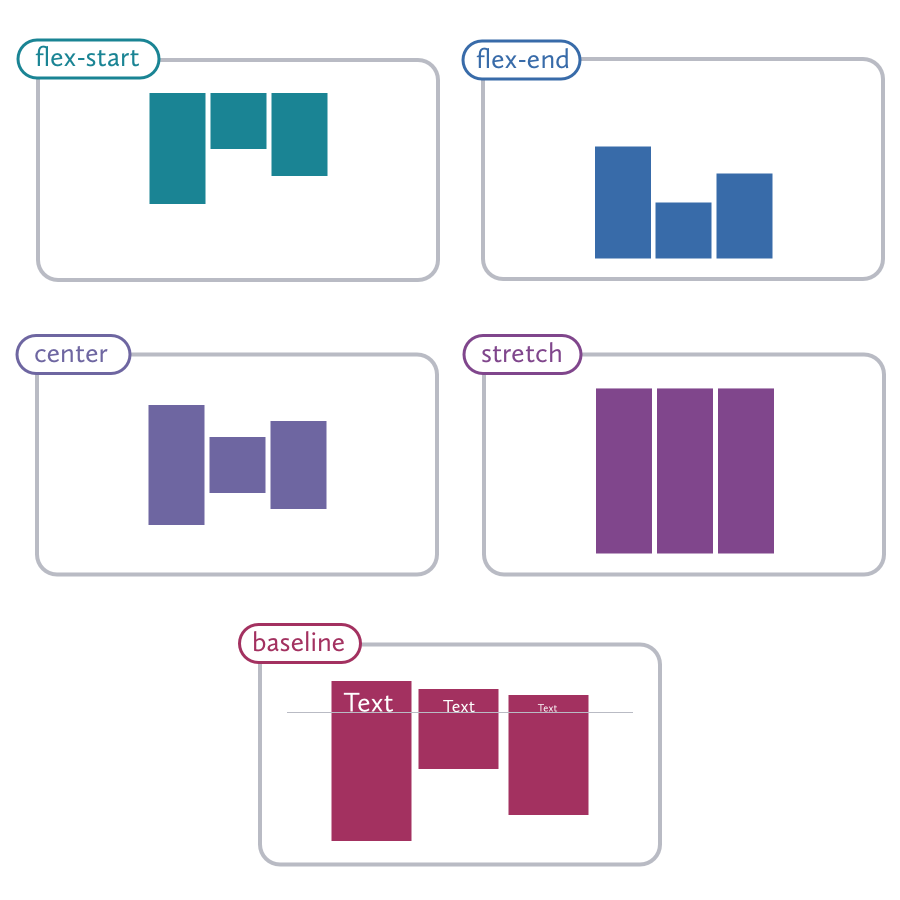
We can use `align-items: stretch` to solve the "equal height columns" problem
that has plagued CSS layouts since the beginning. You can also set both
`justify-content` and `align-items` to `center` to center your items in the
middle of your container, which is really helpful for things like hero areas
and splash pages.
There are several more properties that are used less often but that you might
find useful.
### Affect alignment of all child elements wiht align-items
`align-items` affects lines of content and where they should be within their
container. You can see below that the items in each line maintain their normal
heights (unless you are using `stretch`).
```css
.container {
display: flex;
align-content: stretch;
}
```

### Create gutters in a flex container with `gap`
Like `grid`, `flexbox` also use the `gap` property to create gutters in between elements. The usage is the same as `grid` and detailed [in that section](#create-gutters-in-a-grid-with-gap).
### A few more properties
There are also a number of flexbox properties for the items in the container.
These are quite a bit easier to understand than the parent properties and
luckily, there is a useful shorthand that we can use to make this easier.
```css
.list-item {
flex: ;
}
```
* `flex-grow: ` : This provides another way to give your flex items
different widths. If you set all of your child elements to `flex-grow: 1`, but
set the last child to `flex-grow: 2`, it will be twice as wide as its siblings.
* `flex-shrink: ` : Determines how the element will shrink when the
container is not wide enough for the items to maintain their natural width. If
the last element is set to `flex-shrink: 2` while its siblings are set to
`flex-shrink: 1`, it will shrink twice as much as its siblings.
* `flex-basis: ` : What we should consider to the be natural size of the
item. This can be thought of as the "breakpoint" at which the grow and shrink
properties are triggered.
`order` controls the order in which the item appears in the container. Negative
numbers are accepted and will appear before what would normally be the first
element.
`align-self` has all of the same options as `align-items`, but lets you control
how individual elements are aligned. For instance, the siblings may be set to
`flex-start`, but you can chose an item to set to `flex-end`.
You probably won't be using all of these together, but such a monstrosity would
look like this:
```css
.container {
align-items: flex-start;
display: flex;
height: 40em;
}
.item {
flex: 1 1 2em;
}
.item:nth-child(3) {
align-self: flex-end;
flex: 2 10 5em;
order: -1;
}
```
### Learning resources
Flexbox can be a hard thing to wrap your head around, especially if you are
used to the quirks of traditional CSS layouts. Site like [Codepen] are a good
way to learn is just to experiment and see what you can come up with.
If you aren't sure how you would use flexbox in a real-world application,
[Solved by Flexbox] is a great resource put together by Mozilla that features a
lot of great practical ideas.
## Position
*Positioning* gives us a completely different layout method. The default value
is `static`, and makes the element behave normally.
Using `position: relative` lets you specify an offset with `top`, `bottom`,
`left`, and `right`.
```css
.logo {
position: relative;
left: 1em;
top: 1em;
}
```
This can be useful to do a simple offset without using something like `margin`,
but it becomes really powerful when containing a child with
`position:absolute`.
### Remove an item from the flow with absolute positioning
`position: absolute` bases the elements position relative to the nearest
parent element that has `position: relative` set. If it can't find one, it will
be relative to the document.
```css
.hero {
position: relative;
}
.hero-icon {
position: absolute;
left: 20px;
top: 10%;
}
```

Absolute positioning should not be used to lay out columns of content. Because
the elements are removed from the document flow, that means every time you add
content to one section, you may have to adjust the sizes of other sections by
hand, and it makes responsive design much more of a hassle than it needs to be.
Reserve absolute positioning for getting those small design elements exactly
where you want them to be. As a general rule, if an element can be simply
positioned using floats or a change to the `display` styles, it is probably
best to avoid absolute positioning.
### Centering using absolute position
Something that can be very useful but stumps a lot of beginners is centering
elements with absolute positioning. If your element has a set size, it's just a
matter of offsetting using margins. Let's take the last example but center the
icon both horizontally and vertically. To center an element using absolute
positioning, just follow these steps:
1. Add `left: 50%` to the element that you want to center. You will notice that
this aligns the left edge of the child element with the 50% line of the parent.
2. Add a negative left margin that is equal to half the width of the element.
This moves us back onto the halfway mark.
3. Next, we'll do a similar process for the vertical axis. Add `top: 50%` to
the child
4. And then add a negative top margin equal to half its height.

This means that even though the container may change sizes, the centered
element will stay right where we want it. The resulting CSS should look
something like this:
```css
.container {
position: relative;
}
.centered-element {
height: 100px;
width: 100px;
position: absolute;
left: 50%;
margin-left: -50px;
top: 50%;
margin-top: -50px;
}
```
### Scroll elements with fixed positioning
`position: fixed` works like `absolute`, but is always relative to the
viewport rather than the document and will remain in place when the user
scrolls. This can make your app feel more like a native application, with a
fixed header or side navigation, or for [any element][floating button] you want
to keep in easy reach. Like absolute positioning, fixed elements will be
removed from the document flow, so you may need to add padding on an element
beneath them to make sure your other content will still be visible.
### Create a sticky element within the document flow
`position: sticky` is the newest of the group (but still [well-supported][sticky support]).
It's a nice cross between relative and fixed position, however, it _stays_ within
the document flow (meaning it maintains its margins, height, etc.). Using the directional
properties like `top`, `bottom`, `left`, and `right` allow
you to set a threshold at which point [the element will "stick"][sticky articles].
### Set up the layer order with z-index
The position property gives us the advantage of being able to specify the
`z-index` of our elements. If we go back to our metaphor of seeing elements as
pieces of paper, setting the `z-index` property allows us to specify whether
our paper is above or below the other pieces. A higher number will appear
above, and a higher number will appear below. You can also use a negative
number, which may make the element appear behind the parent (or even behind the
document entirely)! This can lead to a sort of arms race with higher and higher
numbers to ensure an element always sits on top. This can get pretty
unmanageable and it is better to use positioning and z-indexes conservatively.
## Floats
When you style an element
with `float: left`, the following elements will *reflow*. The *document flow* is
just the order of the content and how the elements arrange themselves around
each other. If the floated element does not have a set width, it will collapse
to the width of the contents. If the following element is narrower than the
remaining space, it will move to the right. Keep in mind that elements set
to `display: block` will need to be given a set width or they will remain on
their own line.
You can prevent an element from reflowing by giving it a `clear` property in
your stylesheet. Options include `clear: both`, `clear: left` (which will still
allow reflowing following elements with `float: right`), and `clear: right`
(which does the opposite). You can also use `clear: none` to override the
default behavior.
Because floated children will cause their parent elements to collapse, you will
find yourself tempted to create new elements just to add `clear: both` and
prevent this behavior. While that does work, we want to keep our markup
semantic so this should be done just using CSS if possible. By using an
`::after` pseudo-element, you can create a *[clearfix]*:
```css
.container::after {
clear: both;
content: "";
display: table;
}
```
Using a preprocessor like [Bourbon] makes it easy to add this as a Sass mixin:
```css
.container {
@include clearfix;
}
```
Floats work best for large containers, but may not work so well for text
elements since it will be difficult to align. You may find that using
`display:inline-block` is better for these situations.
[this also makes for amazingly simple media queries]: https://thoughtbot.com/blog/concise-media-queries-with-css-grid
[be wary of accessibility issues]: https://rachelandrew.co.uk/archives/2019/06/04/grid-content-re-ordering-and-accessibility/
[minmax]: https://developer.mozilla.org/en-US/docs/Web/CSS/minmax
[fit-content]: https://developer.mozilla.org/en-US/docs/Web/CSS/fit-content
[block axis]: https://developer.mozilla.org/en-US/docs/Glossary/Grid_Axis
[place-self]: https://developer.mozilla.org/en-US/docs/Web/CSS/place-self
[clearfix]: http://cssmojo.com/latest_new_clearfix_so_far
[Bourbon]: http://bourbon.io
[sticky support]: http://caniuse.com/#feat=css-sticky
[floating button]: http://www.google.com/design/spec/components/buttons-floating-action-button.html
[sticky articles]: http://updates.html5rocks.com/2012/08/Stick-your-landings-position-sticky-lands-in-WebKit
[javascript alternatives]: https://github.com/garand/sticky
[sticky footer]: http://ryanfait.com/html5-sticky-footer
[table]: http://www.vanseodesign.com/blog/demo/vertical-centering/table-cell.php
[Solved by Flexbox]: http://philipwalton.github.io/solved-by-flexbox
[Codepen]: http://codepen.io