---
title: Optimize your shell experience
teaser: Make your shell workflow as smooth as possible by creating helpers designed
just for you.
tags: shell,productivity,tip
author: Matheus Richard
published_on: 2024-12-20
---
As developers we spend a fair amount of time in the shell. I believe we should
[master our tools] as that'll make work easier.
Instead of just telling you exactly what to do, I'll show you my process so you
can optimize your shell _for yourself, your work and your own enjoyment_.
## The workflow
I recommend checking what are your most used commands in the shell and start
optimizing from there. If you're using [Oh my Zsh](https://ohmyz.sh/) you can
run the `zsh_stats` utility, otherwise try running this:
```sh
history 1 | awk '{CMD[$2]++;count++;}END { for (a in CMD)print CMD[a] " " CMD[a]/count*100 "% " a;}' | grep -v "./" | column -c3 -s " " -t | sort -nr | nl | head -n10
```
This script will check your `history` and display your most used commands.
Here's an example output:
```sh
➜ ~ zsh_stats
37.7667% git
11.3858% vim
10.9372% ag
5.10469% cd
2.72183% rspec
2.71186% rake
2.56231% ls
1.78465% rm
1.47557% mv
1.13659% find
1.10668% mkdir
0.967099% bundle
```
Let's see how we could optimize our workflow based on that data.
## Aliases
Looks like `git` is the most used command, so optimizing it would be a big win
in productivity. That could mean using a helper like [`gitsh`][`gitsh`] -- an interactive
shell for git --, or just creating aliases for the most used git utilities like
`commit`, `push`, `pull`, etc.
```sh
alias gc="git commit --verbose"
alias gp="git push"
alias gprom="git pull --rebase origin main"
```
That was my setup for a long time, but once I started using Oh my Zsh I just
went with [their git plugin], which provides a lot of aliases and helpers for
git.
## Less typing, fewer typos
Another advantage of using aliases is that you can type less. This will not only
save you a few keystrokes, but also reduce the chance of typos. For example,
typing `bundle` or `bundle exec` is very tedious and there's a high chance that
I'll mistype it. So I created aliases for those:
```sh
alias b="bundle"
alias be="bundle exec"
```
You can customize this for your preferred tools, like `yarn` or `docker`.
If you use Z shell, it has a feature that can auto correct your typos, if
you want to. [Here's how to enable it](https://blog.confirm.ch/zsh-tips-auto-completion-correction/) and here's how it works:
```sh
$ cta README.md
zsh: correct 'cta' to 'cat' [nyae]? y
# File content
`````
## Accept your mistakes
Even with aliases, the muscle memory sometimes is strong and you might still
keep using commands like `git` and mistype them. One trick that I like to do is
to create aliases for my common typos. For example, I often type `gti` instead
of `git`. After a lot of frustration, I gave up and accepted it. Instead of
forcing myself to obey the computer, I made the computer understand me:
```sh
alias gti="git"
```
It's a simple thing, but it was such a relief for me! Remember, optimize
for _your_ happiness! You can go further and use [a helper like `g`][a helper like `g`] which is
basically impossible to type wrong now.
## Custom-made helpers
The next step would be taking this further and creating custom-made helpers for
your own usage. For instance, I work on several Ruby projects. Some use Rubocop
as a linter, others use Standard. Besides that I also have a Rust pet project
that I play with from time to time. Instead of having to remember which linter
each project uses, I created a helper that figures that out for me:
```sh
function lint() {
if cat Gemfile | grep "standard" >/dev/null 2>/dev/null; then
be standardrb $*
elif cat Gemfile | grep "rubocop" >/dev/null 2>/dev/null; then
be rubocop $*
elif [[ -a "Cargo.toml" ]]; then
rustfmt **/*.rs
else
echo "Linter not found"
return 1
fi
}
```
I could go further and create an abstraction for the arguments so `--fix` would
map to the appropriate flag for each linter. Another Ruby-related helper I have
is `puts`. Instead of opening `irb` to try something in Ruby, I just do it right
in the shell:
```sh
function puts() {
ruby -rdate -e "puts $*"
}
# Usage
puts Date.today - 10 # ten days ago
```
These helpers can be as simple or as complex as you want. On the simpler side,
you could define one to create a directory and `cd` into it:
```sh
function mcd() {
mkdir -p $1 && cd $1
}
```
## Better UX
The default shell experience can be very dry. Here are some things that you
might do to get a better experience.
### Better directory navigation
On our initial example, `cd` used to be one of the most used commands. There's a
few ways to improve that. You can simply set
```sh
setopt autocd
```
Which will allow you to navigate directories without having to type `cd`. You
just type the directory name and hit enter.
But I like to go further and use the [z plugin] in Z shell (also available
widely via [zoxide]). These tools act like a smart `cd`. They rank the most
used paths and you can quickly jump to them by typing a few characters.
```sh
$ pwd
/Users/matheus
$ z thought
$ pwd
/Users/matheus/Documents/dev/thoughtbot
$ z down
$ pwd
/Users/matheus/Downloads
```
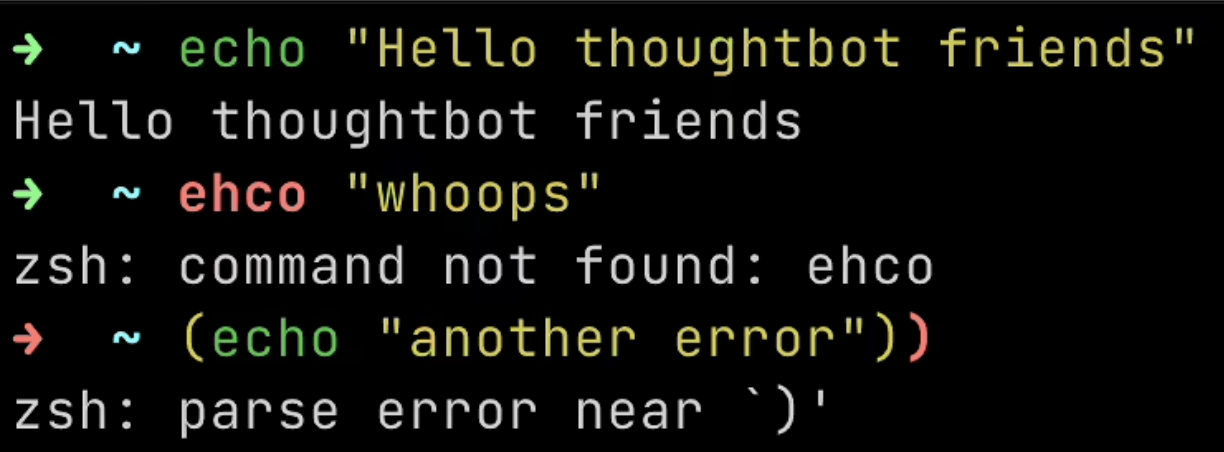
### Syntax highlighting
I love syntax highlighting on my
code, and I like it in my shell as well. The Fish shell has this feature by
default, and I add it to my Z shell with the [zsh-syntax-highlighting] plugin.
Here's what it looks like:
Invalid commands or syntax errors get highlighted in red
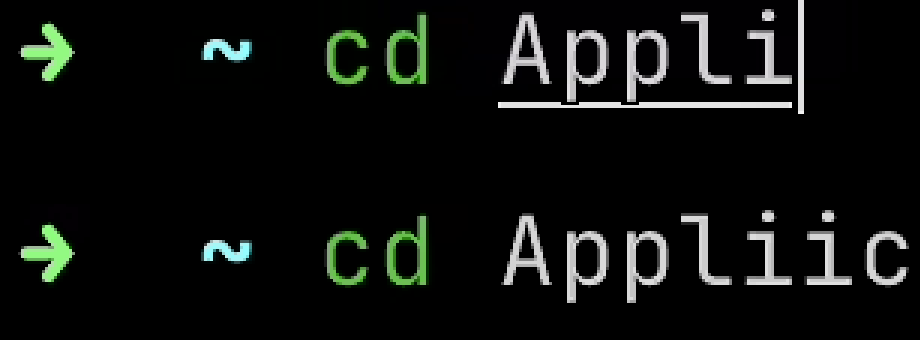
It also highlights paths in your system, which is very useful when you're
dealing with files:
Note that invalid paths do not have the underscore
On the same note, I use [bat] as a replacement for `cat`, which provides syntax
highlighting to the output.
```sh
alias cat='bat --paging=never'
```
And I use [delta] to add syntax highlighting to git diffs.
### Auto completion
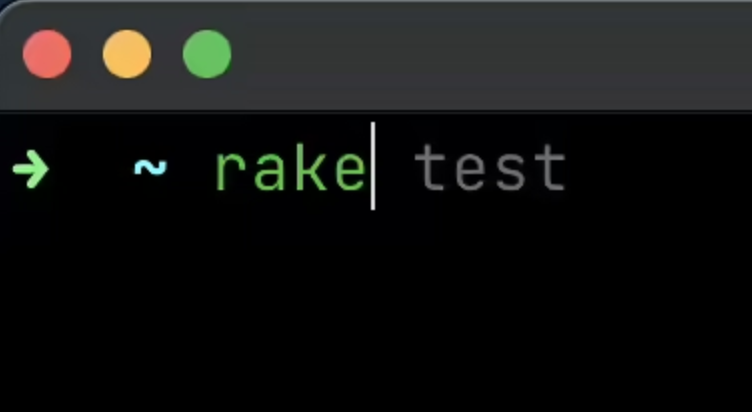
Also in the theme of typing less, instead of searching for a previous command
with cmd+r or using the arrow keys, I use
[zsh-autosuggestions]. It suggests commands based on your history as you type.
Just press → and it will autocomplete your command
I can hit ↑ to cycle through suggestions with the same prefix.
## Closing thoughts
I hope this inspires you to optimize your shell experience. You don't have to
implement everything at once, or everything at all. Pick what makes sense for
you and your workflow.
Don't be afraid of using super custom aliases and tools. Most of the time you're
the only one using your shell, so it makes sense to optimize for your own needs.
Customize your aliases and tools just like you customize your color scheme.
Some of these optimizations will take time to get used to, but it's worth it in
the long run. New things can be hard to adopt, so don't give up too soon!
[master our tools]: https://thoughtbot.com/blog/what-my-father-taught-me-about-software-development#master-your-tools
[`gitsh`]: https://github.com/thoughtbot/gitsh
[their git plugin]: https://github.com/ohmyzsh/ohmyzsh/blob/master/plugins/git/README.md
[auto correct]: https://blog.confirm.ch/zsh-tips-auto-completion-correction/
[a helper like `g`]: https://github.com/thoughtbot/dotfiles/blob/main/zsh/functions/g
[z plugin]: https://github.com/agkozak/zsh-z
[zoxide]: https://github.com/ajeetdsouza/zoxide
[zsh-syntax-highlighting]: https://github.com/zsh-users/zsh-syntax-highlighting
[bat]: https://github.com/sharkdp/bat
[delta]: https://github.com/dandavison/delta
[zsh-autosuggestions]: https://github.com/zsh-users/zsh-autosuggestions