---
title: Figma Shortcuts to Speed Up Your Design Workflow
teaser: Here are my best tips for getting really fast in Figma.
tags: tools,figma,design,macos
author: Stephen Lindberg
published_on: 2022-04-20
---
There’s a part of the skill learning curve that’s deeply satisfying to me, which
is when a tool becomes so familiar that I can work without actively thinking
about the interface. I’d like to share some [Figma](https://www.figma.com) tips
that have helped me get faster and work with less resistance, with videos!
## Fast Selections
Selecting layers is one of the main interactions in Figma. When you’re starting
out, you’ll spend a lot of time managing your selections, which can be tedious.
Here are a few pointers that make selections easier and faster:
### Deep select
| OS | Combo |
| ----------- | ----------------------------------------- |
| macOS | CMD + Left Click |
| Windows | CTRL + Left Click |
This combo selects the inner-most nested layer under the cursor.
Sometimes there are too many layers to get a precise selection this way. That's
where the next combo really shines.
### Select Layer Menu
| OS | Combo |
| ----------- | ------------------------------------------ |
| macOS | CMD + Right Click |
| Windows | CTRL + Right Click |
This combo reveals a menu to select the exact layer you want from all the
layers under the cursor.
### Select Children, Select Parent
| Action | Combo |
| --------------- | ------------------------------------------ |
| Select children | Enter |
| Select parent | Shift + Enter |
These combos are useful for quickly getting to the right layer depth within a
complex component or frame before further refining your selection. They even
work when you've selected multiple layers with different parents.
### Select Siblings
| OS | Combo |
| ----------- | ------------------------------------------ |
| macOS | CMD + A |
| Windows | CTRL + A |
This will select all layers at the same depth and within the same parent layer
of the current selection. This is useful for selecting all siblings within a
frame. Unfortunately, this doesn't work if you have selected multiple layers
with different parents.
You can also use Tab and Shift + Tab to select the next and previous sibling.
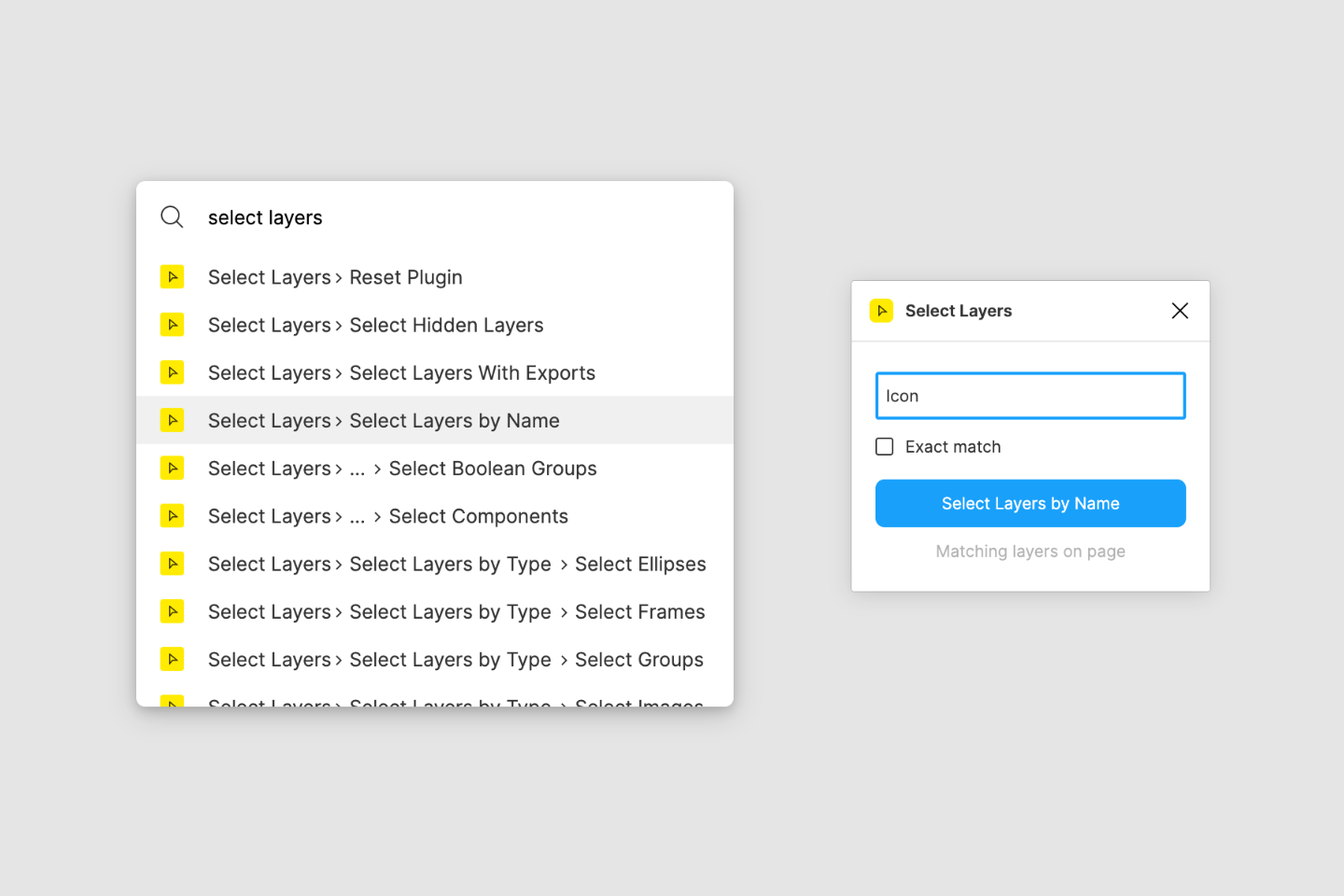
For more complex selections, the [Select Layers plugin] by Yuan Qing Lim is a
great addition to your tool belt. This plugin has a suite of selection tools,
such as selecting layers based on partial name matching, or selecting layers
with similar properties like fill color or dimensions.
[Select Layers plugin]: https://www.figma.com/community/plugin/799648692768237063/Select-Layers
## Quick Alignments
Nudging pixels is annoying and time-consuming. These combos will help you
quickly align your layers without the frustration of finicky guide snapping:
| OS | Combo |
| ----------- | ------- |
| macOS | OPTION + W or A or S or D|
| Windows | ALT + W or A or S or D|
This will align the edges of the selected layers to the topmost, leftmost,
bottommost, or rightmost layer in the selection. The keys are easy to remember
because they represent the same shape as the arrow keys on a QWERTY
keyboard. If you’re a PC gamer, you’re probably already familiar with this
mapping!
| OS | Combo |
| ----------- | ------- |
| macOS | OPTION + V or H |
| Windows | ALT + V or H |
This combo will align the centers of your selected layers vertically or horizontally.
## Missing Shortcuts
I use [auto layout] to help speed up my process (nudging pixels is the worst,
remember?), but unfortunately there are no keyboard shortcuts for it,
and Figma doesn't have configurable shortcuts yet. However, there _is_ a
workaround.
Using a separate tool, it’s possible to map key combinations to menu items
within an application. [MacOS has this feature this natively][macos keys], and
[Auto Hot Key] offers a similar function for Windows.
By creating a plugin to add a few items to the menu, we can assign shortcuts to
any action in the plugin. I recently published [a plugin that adds several auto
layout actions to the menu][auto layout shortcuts plugin], so check it out!
[auto layout]: https://help.figma.com/hc/en-us/articles/360040451373-Create-dynamic-designs-with-auto-layout
[macos keys]: https://support.apple.com/sr-rs/guide/mac-help/mchlp2271/mac
[Auto Hot Key]: https://www.autohotkey.com/
[auto layout shortcuts plugin]: https://www.figma.com/community/plugin/1081298003197000387/Auto-Layout-Shortcuts
That's all the tips I have for now. Have fun getting speedy!