---
title: Creating Custom Xcode Templates
teaser: Sometimes Xcode doesn't work how you want, custom templates let you control
how files are created.
tags: ios
author: Jake Craige
published_on: 2016-01-22
---
Xcode comes packed with useful built in templates, but sometimes you want to add
custom ones that tailor to your needs. In this tutorial we'll walk through
creating a custom template.
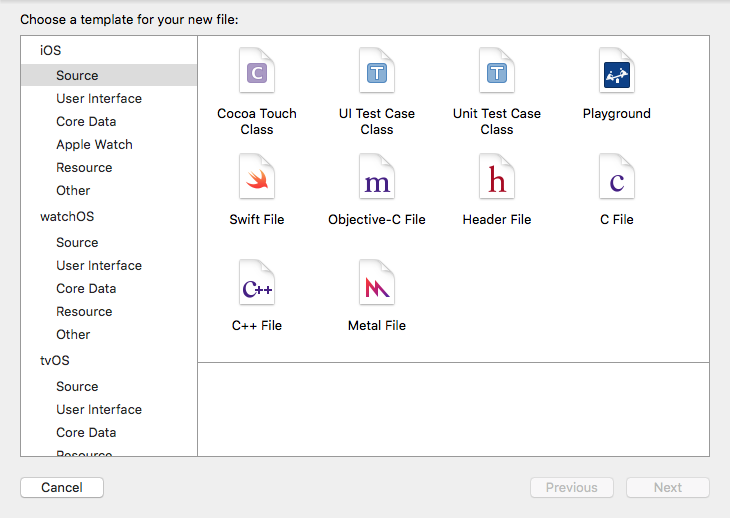
Xcodes iOS Source templates
The default template for an empty Swift file includes metadata and an import at
the top. It looks like:
```swift
//
// FileName.swift
// ProjectName
//
// Created by Your Name on 12/29/15
// Copyright (c) 2015 Company. All rights reserved.
//
import Foundation
```
At thoughtbot, we prefer to remove this and not spend time manually deleting
these lines in every new file.
To solve this, let's create a custom template for an empty Swift file.
## Creating a Template
To create our template, we'll copy the existing one and remove the metadata and
import.
Xcode looks for custom templates at `~/Library/Developer/Xcode/Templates`.
Directories here will be treated as "groups" within Xcode. We'll create a group
named `Custom` and copy the built in Swift template into it.
In your terminal, run these commands:
mkdir -p ~/Library/Developer/Xcode/Templates/Custom
cp -R /Applications/Xcode.app/Contents/Developer/Library/Xcode/Templates/File Templates/Source/Swift\ File.xctemplate ~/Library/Developer/Xcode/Templates/Custom/
With the template copied over, let's `cd` in and see what we have:
```sh
$ cd ~/Library/Developer/Xcode/Templates/Custom/Swift\ File.xctemplate
$ ls
TemplateIcon.png TemplateIcon@2x.png TemplateInfo.plist ___FILEBASENAME___.swift
```
We have a few icons, a plist and what looks like a Swift file. Since we
want to change the Swift code, let's look at that Swift file.
```sh
$ cat ___FILEBASENAME___.swift
//
// ___FILENAME___
// ___PROJECTNAME___
//
// Created by ___FULLUSERNAME___ on ___DATE___.
//___COPYRIGHT___
//
import Foundation
```
We found what we were looking for! Using the editor of your choice, clear out
the contents of this file and save. You can also do it from the terminal by
deleting it and creating a new one:
rm ___FILEBASENAME___.swift
touch ___FILEBASENAME___.swift
That's all it takes. When you go to *File → New* and click *Custom*, you will
see the new template.
If you have Xcode open, it's a good idea to restart it so that the new templates
are loaded.
Enjoy!