---
title: A tmux Crash Course
teaser: Learn everything you need to be productive in tmux.
tags: tmux,unix,vim
author: Josh Clayton
published_on: 2011-01-18
---
I've been using tmux for about six months now and it has become just as
essential to my workflow as vim. Pane and window management, copy-mode for
navigating output, and session management make it a no-brainer for those who
live in the terminal (and especially vim). I've compiled a list of tmux
commands I use daily to help me work more efficiently.
## Shortcuts
If a tmux command I mention is bound to a keyboard shortcut by default,
I'll note that in parenthesis.
They're accessed by entering a key combination called the prefix
and then typing a letter.
For example, if you see `prefix + d` below,
that means you would first hit (and release) `Control + b`
and then type `d`.
The prefix can also be changed,
which I'll show you how to do [later](#must-haves).
## Session Management
Sessions are useful for completely separating work environments. I have a
'Work' session and a 'Play' session; in 'Work', I keep everything open that I
need during my day-to-day development, while in 'Play', I keep open current
open-source gems or other work I hack on at home.
tmux new -s session_name- creates a new tmux session named session_name
tmux attach -t session_name- attaches to an existing tmux session named session_name
tmux switch -t session_name- switches to an existing session named session_name
tmux list-sessions- lists existing tmux sessions
tmux detach (prefix + d)- detach the currently attached session
## Windows
tmux has a tabbed interface, but it calls its tabs "Windows". To stay
organized, I rename all the windows I use; if I'm hacking on a gem, I'll name
the window that gem's name. The same thing goes for client applications. That
way, I can recognize windows by context and not what application it's running.
tmux new-window (prefix + c)- create a new window
tmux select-window -t :0-9 (prefix + 0-9)- move to the window based on index
tmux rename-window (prefix + ,)- rename the current window
## Panes
Panes take my development time from bland to awesome. They're the reason I was
able to uninstall MacVim and develop solely in iTerm2. I don't have to switch
applications to switch contexts (editing, reading logs, IRB, etc.) - everything
I do, I do in a terminal now. People argue that OS X's Cmd+Tab is just as
fast, but I don't think so.
tmux split-window (prefix + ")- splits the window into two vertical panes
tmux split-window -h (prefix + %)- splits the window into two horizontal panes
tmux swap-pane -[UDLR] (prefix + { or })- swaps pane with another in the specified direction
tmux select-pane -[UDLR]- selects the next pane in the specified direction
tmux select-pane -t :.+- selects the next pane in numerical order
## Helpful tmux commands
tmux list-keys- lists out every bound key and the tmux command it runs
tmux list-commands- lists out every tmux command and its arguments
tmux info- lists out every session, window, pane, its pid, etc.
tmux source-file ~/.tmux.conf- reloads the current tmux configuration (based on a default tmux config)
## Must-haves
These are some of my must-haves in my tmux config:
# remap prefix to Control + a
set -g prefix C-a
unbind C-b
bind C-a send-prefix
# force a reload of the config file
unbind r
bind r source-file ~/.tmux.conf
# quick pane cycling
unbind ^A
bind ^A select-pane -t :.+
## Workflow
During the day, I'll work on one or two Rails apps, work on my dotfiles, run
irssi, and maybe run vim in another window to take notes for myself. As I
mentioned, I run all of this inside one tmux session (named work) and switch
between the different windows throughout the day.
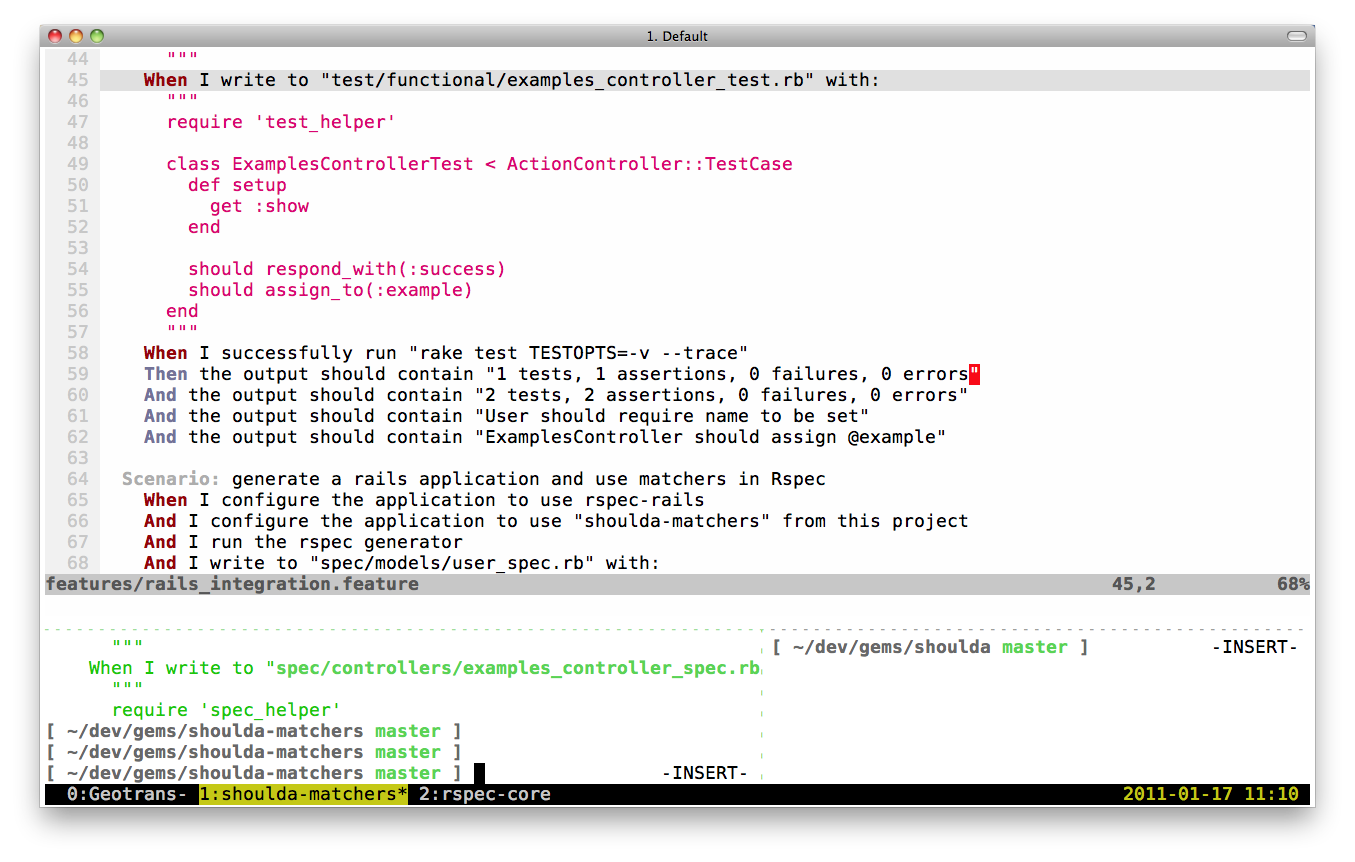
When I'm working on any Ruby work specifically, I'll have a 75%/25% vertical
split for vim and a terminal so I can run tests, interact with git, and code.
If I run tests or `git diff` and want to see more output than the 25% allots
me, I'll use tmux to swap the panes and then move into copy mode to see
whatever I need to see.
Finally, I run [iTerm2](http://sites.google.com/site/iterm2home/) in
full-screen mode. Switching between OS X apps for an editor and a terminal is
for chumps!
## What's next
If you found this article useful, you might also enjoy:
* [Seamlessly Navigate Vim and tmux Splits][seam]
* [tmux Copy and Paste on OS X][copy]
* [Running Specs from Vim, Sent to tmux via Tslime][tslime]
[seam]: https://thoughtbot.com/blog/seamlessly-navigate-vim-and-tmux-splits
[copy]: https://thoughtbot.com/blog/tmux-copy-paste-on-os-x-a-better-future
[tslime]: https://thoughtbot.com/blog/running-specs-from-vim-sent-to-tmux-via-tslime