---
title: A designer developing for Android
teaser: 'Here''s some advice for designers who find themselves developing Android
apps.
'
tags: android,app,design,devtools
author: Eric Bailey
published_on: 2018-11-08
---
We are working with a client who tasked us with helping them create an Android
app that replicates a subset of features on their iOS app. It’s an interesting
challenge: not every interaction on iOS can directly translate to Android. The
client was cognizant of this, and asked for our help making this new app feel
like a natural part of the Android ecosystem.
Like most other people who use the web a lot, I’ve interacted with
[Material Design](https://material.io/).
As a studious designer, I’ve also made sure to read up on Material Design’s
thorough [design](https://material.io/design/) and [development guidelines](https://material.io/develop/).
However, this was my first time actually making an Android app. It was an
exciting prospect and I was eager to dive in!
Following are some learnings that can hopefully help you out if you ever find
yourself in a similar position:
## Design tools
The client uses a Sketch file as a source of truth for how things should look
and operate. This is great! It means that there’s a centralized reference for
anything app-related.
### Symbols
Other people have discussed the importance of
[using Sketch’s
Symbols](https://www.smashingmagazine.com/2017/04/symbols-sketch/) feature to
[improve your design workflow](https://novemberfive.co/blog/symbols-guidelines-in-sketch/),
so I won’t cover it here.
What I will say is that spending a little upfront time converting your Sketch
document to use Symbols is well worth it. It will codify your user interface
components, allowing you to more easily discuss and update interface elements.
It will also save dramatically on effort when it comes time to start
prototyping, which allows you to spend more time on the important part:
creating an effective solution to your problem.”
### Limitations
That being said, design tools like Sketch will only take you so far. The client
had a do-or-die launch date; one based on a hard-and-fast deadline dictated to
them by an external vendor. Because of this, I made the decision to take as
much of my design work into code as possible.
Considering this non-negotiable due date, I wanted to free up as much time as
possible for the project’s developer, my co-worker [Alex](https://github.com/alexsullivan114).
He’s an absolutely brilliant mobile developer, and I was lucky to be paired
with him.
## Android Studio
My thinking was that the less time Alex had to spend worrying about how things
looked, the more time he could devote to the quality of the app logic he’d have
to write. Ideally, it would also give him more time to react to any unforeseen
complications, should they pop up.
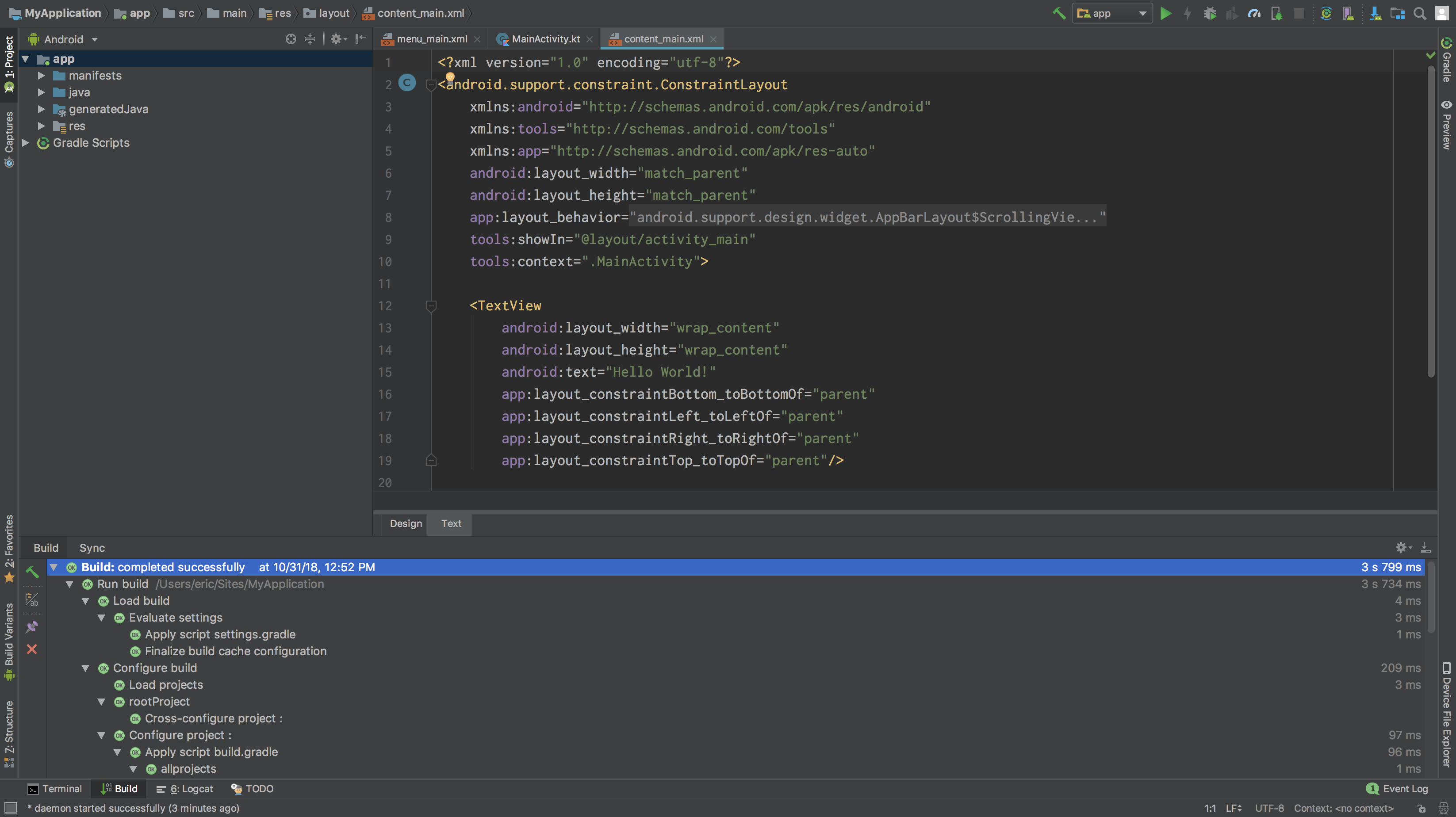
To start coding an Android App, you need an Android development environment.
[Android Studio](https://developer.android.com/studio/) is an IDE dedicated to
creating and maintaining Android apps. It’s… not the prettiest program, nor is
it the easiest to use. Fortunately, Alex did a great job explaining the ins and
outs of how it works.
As a designer, you’re going to want to get comfortable working in the following
files:
### colors.xml
Much like [Sass variables](http://sass-lang.com/guide#topic-2) or
[CSS Custom Properties](https://developer.mozilla.org/en-US/docs/Web/CSS/Using_CSS_variables),
you’re going to want to abstract as much of your code as possible. Regardless
of coding language or medium, this kind of practice helps keep your code
consistent, flexible, and easy to maintain.
In Android, [`colors.xml`](https://developer.android.com/guide/topics/resources/more-resources#Color)
is used to specify all your app’s color values. For example, a color called
sunset would described like this: `#FA5A41`.
I personally like tying color names to function (i.e. “background”, “text”,
“warning”, “error”, etc.), but the client’s design system preferred descriptive
names. It’s best to honor this, so that our deliverable works for how their
development and design teams communicate internally.
After turning their palette into something Android-friendly, we can now use it
in the various pieces that make up the app. Access the contents of `colors.xml`
by first typing `@color/`, then the color’s name:
```xml
/>
```
You’re going to want to be diligent about working from `colors.xml`. If you
find yourself declaring a color value inline, do yourself and your future
coworkers a favor and abstract it instead.
### dimens.xml
We want to abstract our measurements, much like with our color values. In
Android, [`dimens.xml`](https://developer.android.com/guide/topics/resources/more-resources#Dimension)
is where we place that code.
#### Density-independent pixels
Android has a unit called density-independent pixels (`dp`). It’s a technical
solution that plays to the strengths of their many devices having different
[display sizes and densities](https://material.io/design/layout/understanding-layout.html).
Unlike declaring a regular static pixel value, a device pixel declaration tells
the Android operating system to draw the pixels making up a UI proportionately
based on a device's reported display properties.
This might take a bit to wrap your head around—I kind of think about them like
[CSS’ viewport units](https://www.lullabot.com/articles/unexpected-power-of-viewport-units-in-css).
You’ll want to rely on density-independent pixels for your measurements as much
as possible, to allow your design to gracefully adapt to different Android
devices.
#### Scale-independent pixels
Scale-independent pixels (`sp`) are much like density-independent pixels, only
they are used for type. The main difference is that they scale along with a
user’s font size preference. This is great for helping to make your app
accessible for those who benefit from a larger type size.
#### Abstraction
The client’s design system used a suite of standardized spacing values (10px,
20px, 30px, etc.). Since Sketch pixels don’t directly translate to Android
density-independent pixels, the trick is to abstract these Sketch measurements
and codify them as a series of distances:
```xml
2dp4dp8dp10dp12dp
```
You’ll also want to codify other repeated spacing values, such as things like
corner radii,
[elevation](https://material.io/design/environment/elevation.html), outer
screen margins, etc.
When abstracting your measurements, the other important thing to keep in mind
is sometimes you don’t want to use generic spacing. Certain distances,
especially ones used across many different screens, should be semantically
described in `dimens.xml` to more easily determine *why* that spacing value was
chosen. For us, it was things like the distance between a UI component and a
divider, the padding of a sticky footer, etc. You’ll want to use a
human-friendly name for these values, to clearly describe intent:
`10dp`.
#### Start from the top
There’s a trick in web design where you consistently apply spacing to only the
top or bottom of all your interface elements. The idea is it makes a consistent
appearance easier, as you don’t have to constantly undo and redo your margin
declarations and wreck the cascade. Personally, I prefer
[applying spacing from the top](https://matthewjamestaylor.com/css-margin-top-vs-bottom),
as an infinite vertically-scrolling canvas means there’s always going to be
more room below.
### styles.xml
Styling components in Android is a highly declarative process. There isn’t a
real cascade, like what you’d get with CSS, meaning that you’re going to spend
a lot of time re-describing things like color and fonts between different
interface components.
This is where our abstraction work starts to pay off. You can invoke things
like color in your `styles.xml` file, then apply those styles to an interface
component. For example, an input label style could be constructed like this
```xml
```
This collection of styling instructions can then be via a declaration of
`style`:
```xml
/>
```
If you’re observant, you might have also noticed the use the `spacing_small`
variable from our `dimens.xml` file. Note that `style` is different than a
declaration of `android:textStyle`, which is used to control rendering type as
regular, bold, or italic (this is better controlled in `styles.xml`, ideally
using a typeface that includes intentionally-designed bold and italic fonts).
### strings.xml
[`strings.xml`](https://developer.android.com/guide/topics/resources/string-resource)
is used to contain the content of your app. If you’re picking up on a pattern
here, it’s that this is yet another centralizing file that controls things.
Strings are declared in a fashion similar to colors and measurement:
`Login as an admin`.
In addition to being helpful for localization, `strings.xml` makes it easy to
review your app content to make sure it’s adhering to your writing styleguide
(consistent terminology, capitalization, reading level, etc.).
They are declared by typing `android:text=""`, then `@string/` inside the
double quotes, then the string’s name:
```xml